



Technical SEO checklist for a new website
Run the technical SEO checks that matter for a new website in one afternoon: turn off every setting that hides it, check Google sees your words, one secure address, your sitemap in Google and Bing and a free crawl with 0 errors, then test each new page the day you publish it and the whole site every Sunday.
ByDinesh BypillaReviewed byMurali SidLast checked 22 min read
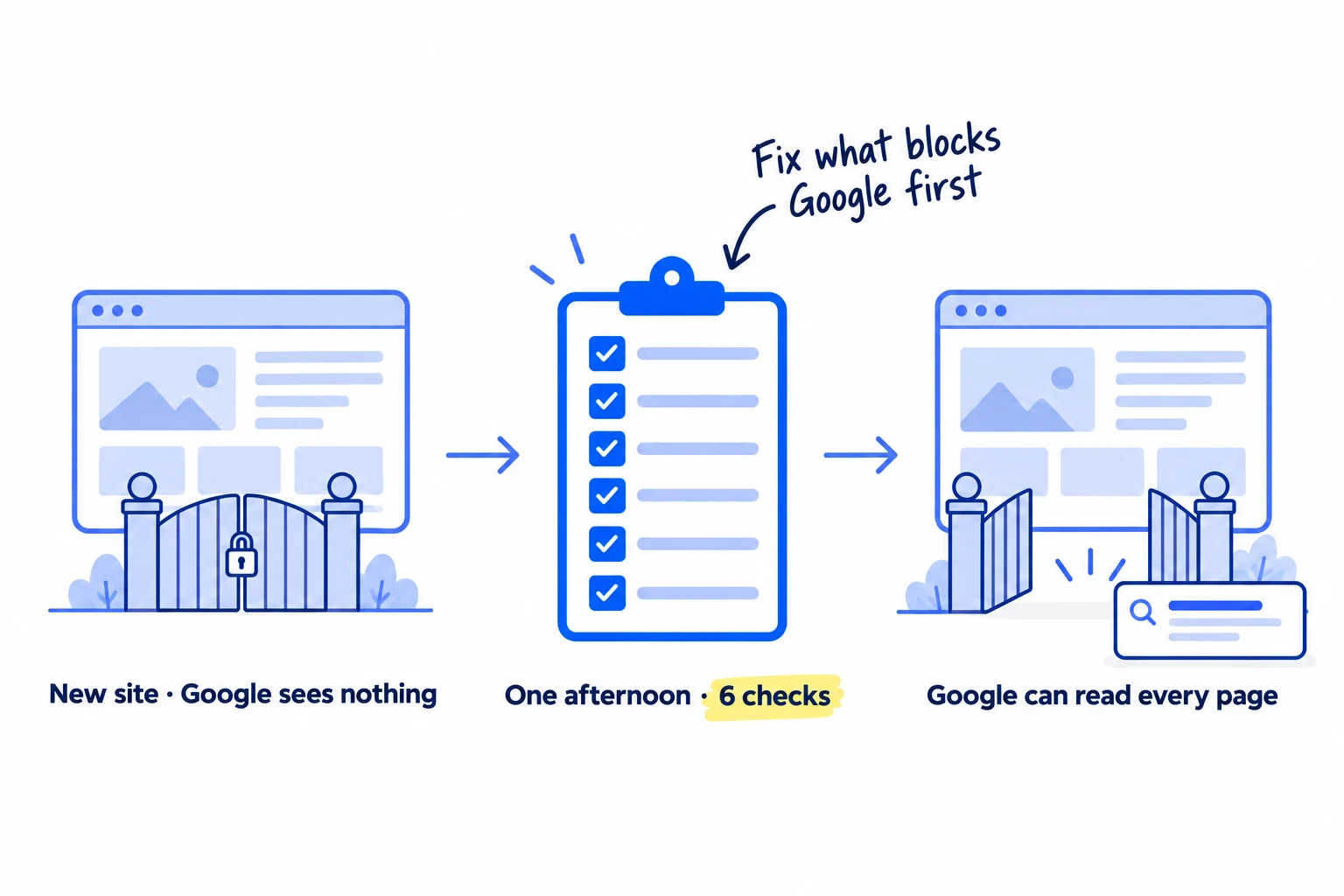
Your new website is live, but Google shows almost nothing, and every technical SEO checklist you find has 70 items for sites with 10,000 pages. This technical SEO checklist for a new website has the 6 checks that matter for a small site, each with a free test you can run in your browser, done in one afternoon, and a 2-minute test for every new page after that. If you skip them, one setting left on from the build can keep your whole site out of Google and ChatGPT while you publish page after page.
Do these three things
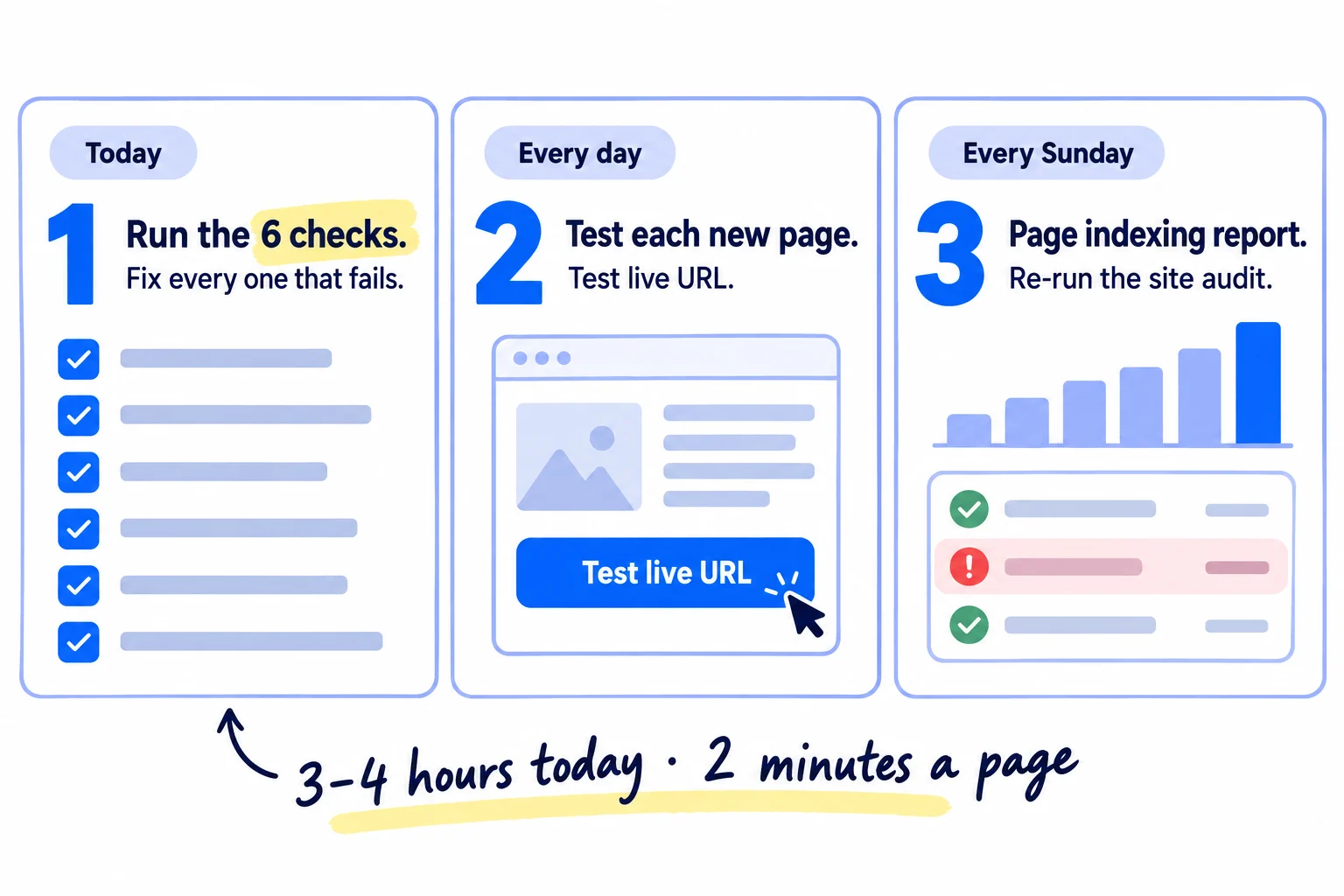
About 3 to 4 hours today, then 2 minutes a page and 30 minutes each Sunday. At week 2, with 14 pages live, at least 12 should be on Google.
Show the three actions in fullHide the full list
- Today: run the 6 checks in steps 1 to 6 in one afternoon, and fix every one that fails: nothing hides your site, Google sees your words, every page opens at one secure address, your sitemap is with Google and Bing, a free crawl shows 0 errors, and your main pages work on a phone and load fast.
- Every day: test each new page the day you publish it with "Test live URL" in Google Search Console, and fix anything it finds before you publish the next page. At 1 page a day, that is 2 minutes a day.
- Every Sunday: open the Page indexing report, re-run your free site audit, and fix every new error before you publish more. Pages that pass but are still not on Google need the indexing fixes.
Get help doing these
ChatGPT or Claude reads this guide and works through it with you.
1. Turn off every setting that hides your site from Google and AI search
Open your robots.txt file, your site builder's search setting and your page code, and remove anything that tells Google or AI search tools to stay away. A new site that shows up nowhere often has a setting that was right while the site was being built, and was never switched off.
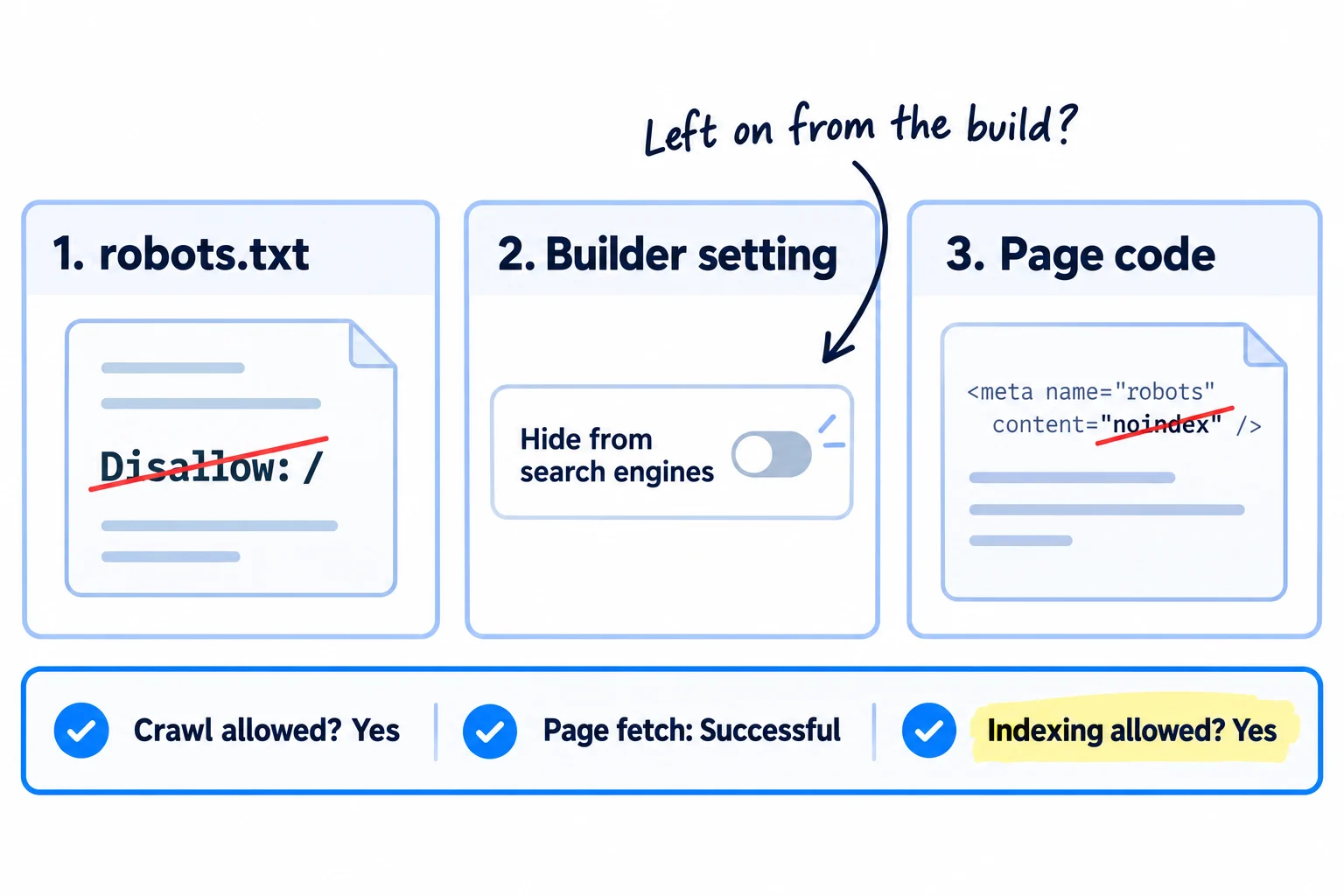
Do these four things, in this order.
- 1
Open your robots.txt
Go to yoursite.com/robots.txt. robots.txt is a short file that tells crawlers, the programs search tools send to read your site, where they may go. Look for "Disallow: /" under "User-agent: *", or under any of these names: Googlebot, Bingbot, OAI-SearchBot, Claude-SearchBot, PerplexityBot. Delete that line. OAI-SearchBot is how pages get into ChatGPT search, Claude-SearchBot into Claude's search, and PerplexityBot into Perplexity. A small site needs nothing more than the file below.
- 2
Switch off your builder's hide setting
On WordPress, open Settings, then Reading, and untick "Discourage search engines from indexing this site". On Wix, open SEO & GEO, then Tools and settings, then SEO Settings, and turn on "Let search engines index your site". On Squarespace, open Settings, then Crawlers, and untick "Block Search engine crawlers". Built your site by hand or with an AI tool? Ask whoever built it to check for the same kind of switch.
- 3
Search your page code for noindex
Open your home page, right-click and choose "View page source". Press Ctrl+F (Cmd+F on a Mac) and search for "noindex". It should find nothing. A "noindex" tag tells Google not to list the page. WordPress adds one to every page when the "Discourage" box is ticked. Do the same search on your 4 other main pages: what you sell, pricing, about and contact.
- 4
Test it the way Google does
Open Google's free Rich Results Test, paste your home page address and click "Test URL". Open the Crawl section. You want "Crawl allowed?" Yes, "Page fetch" Successful and "Indexing allowed?" Yes. This works before you have set up Search Console. Test your 4 other main pages too.
User-agent: *
Allow: /Sitemap: https://yoursite.com/sitemap.xml
Two rules people get wrong. First, robots.txt does not hide a page. Google says it "is not a mechanism for keeping a web page out of Google". To keep a page out, such as a thank-you page, use "noindex" on that page. Second, "noindex" only works if robots.txt lets Google read the page. So never use both on the same page.
GPTBot, ClaudeBot and Google-Extended are different: they collect pages to train AI models, not to show them in answers. Blocking them does not remove you from ChatGPT search or Google. It is your choice. A new business that wants AI tools to recommend it usually leaves them allowed.
If your site sits behind Cloudflare, open Security, then Settings, and check that Search crawlers are allowed. Since 15 September 2026, new Cloudflare domains block training and agent bots on pages that show ads, and Cloudflare says bots that do both search and training, such as Googlebot and Bingbot, are blocked along with them.
After you change robots.txt, and once you have Search Console, open Settings, then the robots.txt report, and click "Request a recrawl". OpenAI says its crawlers take about 24 hours to notice a change.
If you run a D2C store on Shopify: turn off the store password as soon as you can take orders. Open Online Store, then Preferences, and turn off Private mode. While it is on, Shopify hides "all of your online store's pages" from search engines. Shopify makes your robots.txt and sitemap for you; leave its robots.txt as it is. The rest of Shopify SEO has its own guide.
If you run a B2B company whose site a web designer built: ask for admin access to your site today, so you can run these checks yourself. The "Discourage search engines" box on WordPress is often still ticked weeks after launch, and a hidden site brings no enquiries. The guide on making a website for your business lists what to ask for at handover.
- Tool: your browser, your site builder's settings and Google's Rich Results Test. All free.
- Time: 20 minutes.
- You will have: a robots.txt that lets search crawlers in, every hide setting off, and no "noindex" on your main pages.
- It worked if: the Rich Results Test shows "Crawl allowed? Yes", "Page fetch: Successful" and "Indexing allowed? Yes" for all 5 main pages.
- Common mistake: a "Disallow: /" or a hide setting left on from the build. The other mistake is putting a page you want hidden in robots.txt. Google can still list it, with no description, if another site links to it.
2. Check that Google sees your words, not an empty page
Open your page source and search for your headline. If the words are not there, your site builds each page with JavaScript in the visitor's browser, and some search tools see an empty page. Sites built with AI app builders and single-page React apps often work this way.
![Two page-source cards side by side. Left, labelled 'Empty page': only a line reading 'div id=root' and some script lines, with the note 'AI crawlers see this'. Right, labelled 'Words in the HTML': the headline and first paragraph in the code, with a tick. Above them, a search box reading 'Ctrl+F: [your headline]'.](/academy/illustrations/technical-seo-checklist-for-a-new-website/03-step-2.webp)
Right-click your home page and choose "View page source". This shows the HTML your server sends, before any JavaScript runs. Press Ctrl+F and type the first few words of your headline.
- Found it: good. Google and AI tools get your words straight away. Check your 4 other main pages the same way, including your pricing page, then go to step 3.
- Not found, and the source is mostly script lines around something like "div id=root": your words only appear after JavaScript runs.
Why this matters now: Google can run JavaScript, but it does it later, in a queue. Most AI search tools do not run it at all. In a December 2024 study of AI crawler traffic, Vercel found "none of the major AI crawlers currently render JavaScript", including those from OpenAI, Anthropic and Perplexity. So an empty page can be on Google and still be invisible to ChatGPT. Google's own JavaScript guide says server-side rendering or pre-rendering "is still a great idea", because "not all bots can run JavaScript".
Then check what Google itself got. Once your site is in Search Console, paste the page into URL Inspection, click "Test live URL", then "View tested page". Open the HTML tab and search for your headline, and look at the Screenshot tab. If the screenshot is blank or the text is missing, Google cannot read that page either.
The fix is server-side rendering or pre-rendering: your server sends each public page with its words already in the HTML. Most site builders, such as WordPress, Wix, Squarespace and Shopify, already do this. If you built with Lovable, apps created from 13 May 2026 use server-side rendering. Older Lovable apps get pages pre-rendered for search and AI crawlers, and Lovable's docs show how to upgrade an older project. Publish on your own domain too: Lovable says its workspace addresses "are never indexable". For any other hand-built site, give your developer, or your AI coding tool, the brief below. It covers every public page, including each landing page you add later.
Make every public page of our site send its full text in the first HTML response, before any JavaScript runs. Use server-side rendering or pre-rendering at build time. Public pages are: home, pricing, features, about, contact, every blog post and every landing page. Pages behind the login can stay as they are.Also:
Every link between pages is a normal link with an href, not a button that runs a script.
A page that does not exist returns the status code 404, not 200.
Each page has its own title tag and a canonical tag pointing to its own https address.
To check: open View page source on the home page and search for the headline. It must be there.
Google also only follows real links. Its guide says it "can only discover your links" when they are <a> HTML elements with an href. A menu made of buttons that run a script can hide your other pages.
If you run a SaaS: only your public site needs this: home, pricing, features, blog. The app behind the login does not need to be on Google. If your marketing pages live inside the app's code, move them to server-rendered pages first. Once people can find them, fix the pages that get traffic but no signups.
- Tool: your browser, and URL Inspection in Search Console.
- Time: 15 minutes to check. A fix takes a developer or an AI coding tool about a day.
- You will have: proof that your words are in the HTML of your 5 main pages, or a clear brief for the fix.
- It worked if: your headline and first paragraph appear in the page source of all 5 main pages, and in the HTML tab of the live test.
- Common mistake: checking in your own browser. Your browser runs the JavaScript, so the page looks fine to you. The other mistake is waiting months to see if Google "gets there": AI search tools never will.
See it done: Bugmoth's home page source
Bugmoth is a made-up bug-reporting tool for small web teams. It costs $19 a month per team, with a 14-day trial.
Page source before
<div id="root"></div> <script src="/assets/index.js"></script>
Page source after
<h1>Your clients click the bug. You get the screenshot, their browser and the steps.</h1>
Why it works: After the fix, the headline is in the HTML itself, so every search tool can read it without running JavaScript.
3. Make every page open at one secure address
Your site should open at one address only, with https, and every other version should send people there. If your site opens at four addresses, Google has to guess which one to show, and links to you get split between them.
![Four addresses on the left: http without www, http with www, https without www, https with www. Arrows from all four lead to one address on the right with a padlock: 'https://[yoursite].com'. A note reads '301: moved for good'.](/academy/illustrations/technical-seo-checklist-for-a-new-website/04-step-3.webp)
Type these four versions of your address into your browser, one at a time:
All four should end on the same address, with a padlock. Pick www or no www, and keep it. It does not matter which.
If one does not move, turn on HTTPS in your host or builder (it is free on most), set your main domain there, and turn on "redirect to HTTPS" or the setting with that meaning. Google says it "prefers HTTPS pages over equivalent HTTP pages". The padlock also helps visitors trust a new site.
Then do two more checks:
- Canonical tag. In each main page's source, search for "canonical". It should point to that page's own https address. A canonical URL tells Google which address is the real one. Most builders add it for you. Google's own guide says the same content at more than one address is "not something that will cause a manual action". It is still worth one address, so all links count for one page.
- Changed addresses. If you renamed a page, say from /services to /packaging, set up a permanent redirect (301) from the old address to the new one. Google recommends "a permanent server-side redirect whenever possible". Without it, every link and bookmark to the old page lands on an error, and the backlinks you earn later, even links from news sites, are wasted.
Also search Google for site: followed by your builder's free address or your test address, such as site:yourname.builder.com. If a test copy of your site shows up, set it to "noindex" or redirect it to your real domain.
- Tool: your browser and your host or builder's domain settings.
- Time: 20 minutes.
- You will have: one https address for every page, with the other three versions sending people there.
- It worked if: all four versions land on the same https address, and the canonical tag on each of your 5 main pages matches its own address.
- Common mistake: changing a page's address without a redirect, so the link you shared last week now shows an error page.
4. Send your sitemap to Google and Bing
Submit your sitemap in Google Search Console and add your site to Bing Webmaster Tools. A sitemap is a file that lists every page you want found. It helps a new site because few other sites link to it yet, so search tools have few ways to find your pages.
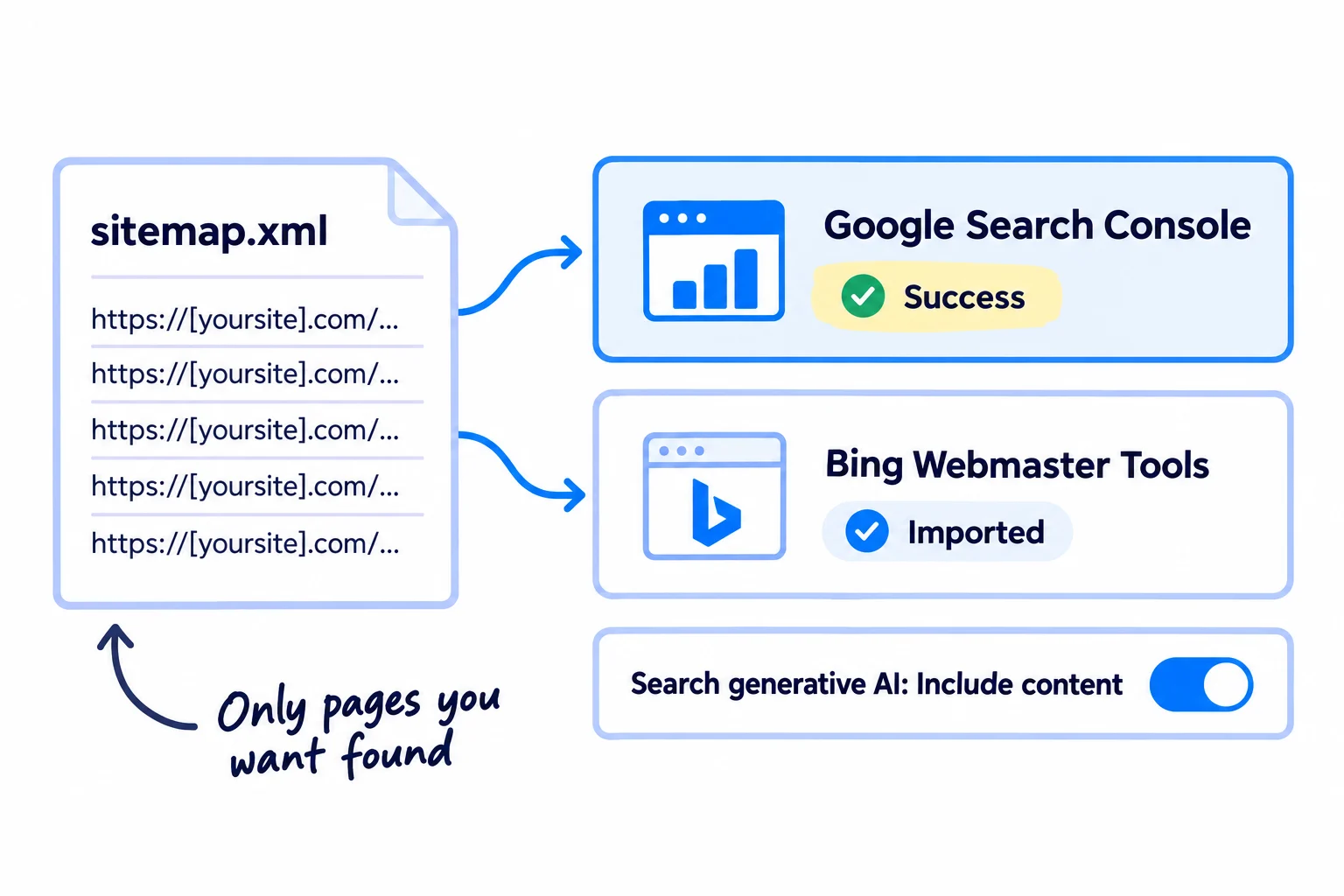
First find your sitemap. Most builders make it for you: try yoursite.com/sitemap.xml. On WordPress without an SEO plugin, it is yoursite.com/wp-sitemap.xml. Open it and check that it lists only full https addresses of pages you want found. Take out test pages, pages that redirect and pages with "noindex". Google ignores the "priority" and "changefreq" values in the file, so do not spend time on them.
Then send it:
- 1
Google Search Console
Add your site to Search Console if you have not: click "+ Add property", choose Domain and add the line Google gives you to your domain's DNS settings. Then open Sitemaps, paste the sitemap address and click Submit. It is free.
- 2
robots.txt
Add the line "Sitemap: https://yoursite.com/sitemap.xml" at the bottom of robots.txt, as in the file in step 1. Any search tool that reads robots.txt then finds it.
- 3
Bing Webmaster Tools
Sign in to Bing Webmaster Tools, choose "Import from Google Search Console" and allow access. Bing copies your site and your sitemap, with no second check of who owns it. Bing's index feeds Microsoft Copilot, and since February 2026 its free AI Performance report shows when Copilot cites your pages, one more way to track AI mentions.
- 4
Leave Google's AI setting on
In Search Console, open Settings, then Search generative AI. Leave it on "Include content", the default. Google rolled out this control to every site on 31 August 2026, and a site must be included to appear in AI Overviews and AI Mode.
You do not need special files for AI search. Google's July 2026 guide says you "don't need to create new machine readable files, AI text files, markup, or Markdown", and that such files "will neither harm nor help". If you want llms.txt or schema markup for other tools, that guide covers them. They are not part of this checklist.
If you run a B2B company or an agency that meets clients in person: also set up a Google Business Profile today, so you can show up in Google Maps results near you.
If you run a D2C store: once your store is public, you can also list your products on Google Shopping for free.
- Tool: Google Search Console and Bing Webmaster Tools. Both free.
- Time: 30 minutes.
- You will have: your sitemap in Google and Bing, a Sitemap line in robots.txt, and Google's AI setting on "Include content".
- It worked if: the Sitemaps report shows "Success", and its "Discovered pages" number equals the number of pages you want found.
- Common mistake: a sitemap full of test pages, redirects or "noindex" pages. It tells Google to check pages you do not want listed.
5. Run a free technical SEO audit and fix the errors
Crawl your whole site once with a free audit tool, then fix every error it finds, starting with broken links. A crawl opens every page the way a search tool does, and lists what is broken in minutes.
Use Ahrefs Webmaster Tools. It is free, and its Site Audit checks for "170+ technical and on-page SEO issues", with 5,000 crawl credits a month per site. That is plenty for a site with a few hundred pages. Sign up, connect your Google Search Console account to prove you own the site, and start a Site Audit.
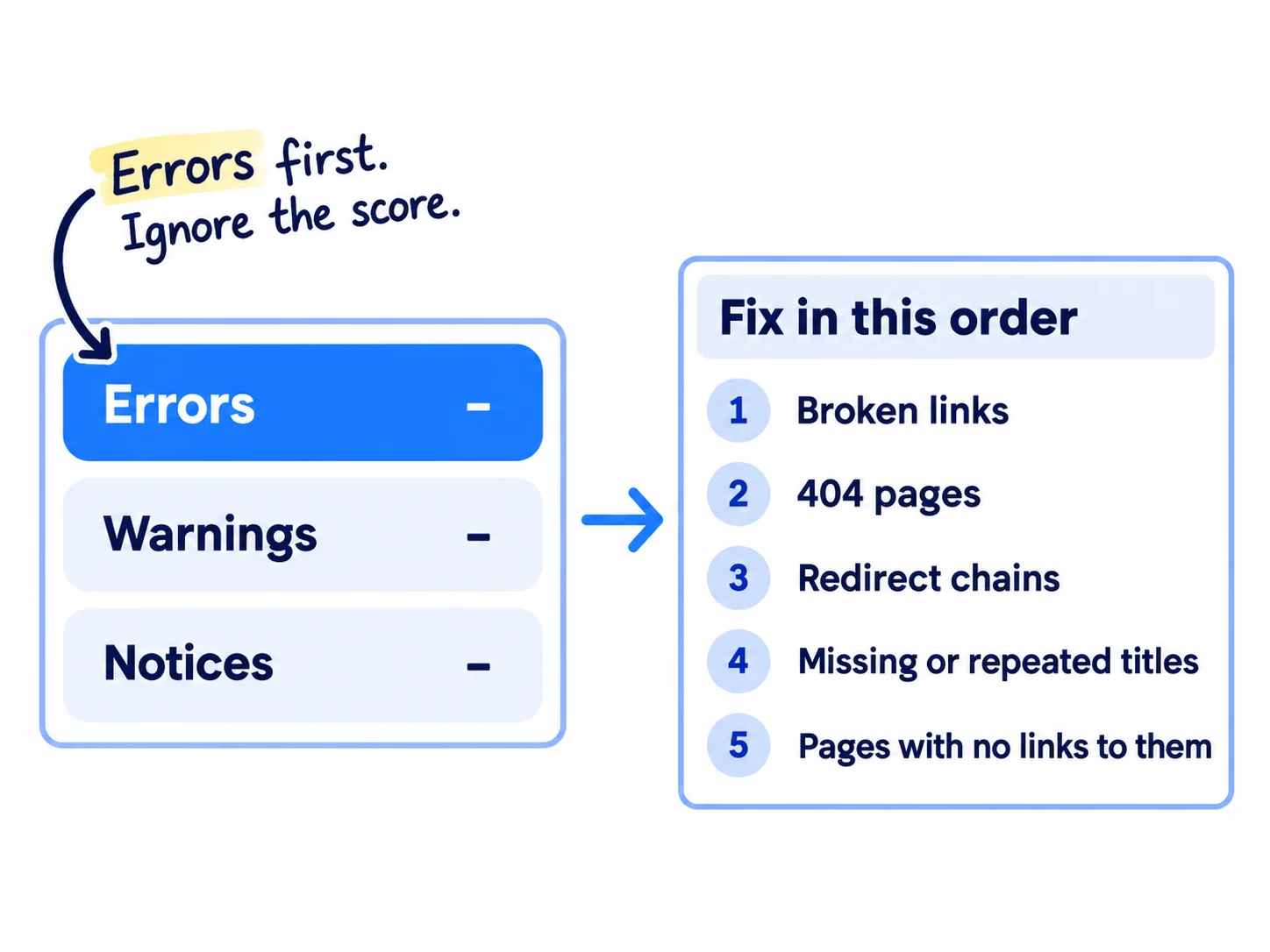
When it finishes, open the errors and fix them in this order:
- Broken links: links on your site that point to a page that no longer exists. Change each one to the right page.
- Pages that should exist but show "404": restore the page, or add a 301 redirect to the closest page.
- Redirect chains: one address that redirects to another that redirects again. Point the first straight at the last.
- Missing or repeated titles: Google asks that "every page on your site has a title", with no "repeated or boilerplate text" across pages. Write one title per page that says what the page is. How to write one that ranks is in the guide on writing a blog post that ranks.
- Pages with no links to them: add a link to each from at least 3 of your other pages, using words that describe it. That anchor text tells Google what the page is about, and it is the same step that helps an article rank higher later.
Then test your error page. In URL Inspection, run "Test live URL" on a made-up address, such as yoursite.com/test-page-404. The result should say the page was not found (404). If Google gets a normal page back instead, Search Console lists it as a "Soft 404". Your developer can fix it with the brief in step 2.
After the fixes, run the audit again.
If you run an agency: run this step on every client site in the first week, as part of onboarding a new client. The error list, fixed, is the first result for your monthly client report. It also works as a fixed-price service package, and as a way into selling SEO to web design clients and AI visibility work.
- Tool: Ahrefs Webmaster Tools (free) and URL Inspection.
- Time: 1 hour for the first crawl and reading it, then 1 to 2 hours of fixes.
- You will have: a list of every error, each one fixed, and a second crawl to prove it.
- It worked if: the second crawl shows 0 errors, and a made-up address returns a 404.
- Common mistake: chasing a health score of 100, or fixing items only big sites need, such as log files, crawl budget or language tags. Fix the errors, then go back to publishing pages.
See it done: Bugmoth's first site audit
First crawl: 4 errors, 23 pages
| Error | Where | Fix |
|---|---|---|
| Broken link | Footer link to /changelog-old | Pointed to /changelog |
| Page shows 404 | /pricing-teams, linked from 3 posts | 301 redirect to /pricing |
| Repeated title "Bugmoth" | 6 pages | One title per page, such as "Bug reporting for web agencies" |
| Page with no links to it | /bugherd-alternative | Linked from the home page, /pricing and one post |
Why it works: They fix the 4 errors in about an hour and leave the warnings, so the rest of the day goes to new pages.
6. Test your main pages on a phone and for speed
Open your 5 main pages on your phone, then test your home page in PageSpeed Insights. Google reads the phone version of your site first, so what is missing on your phone is missing for Google.
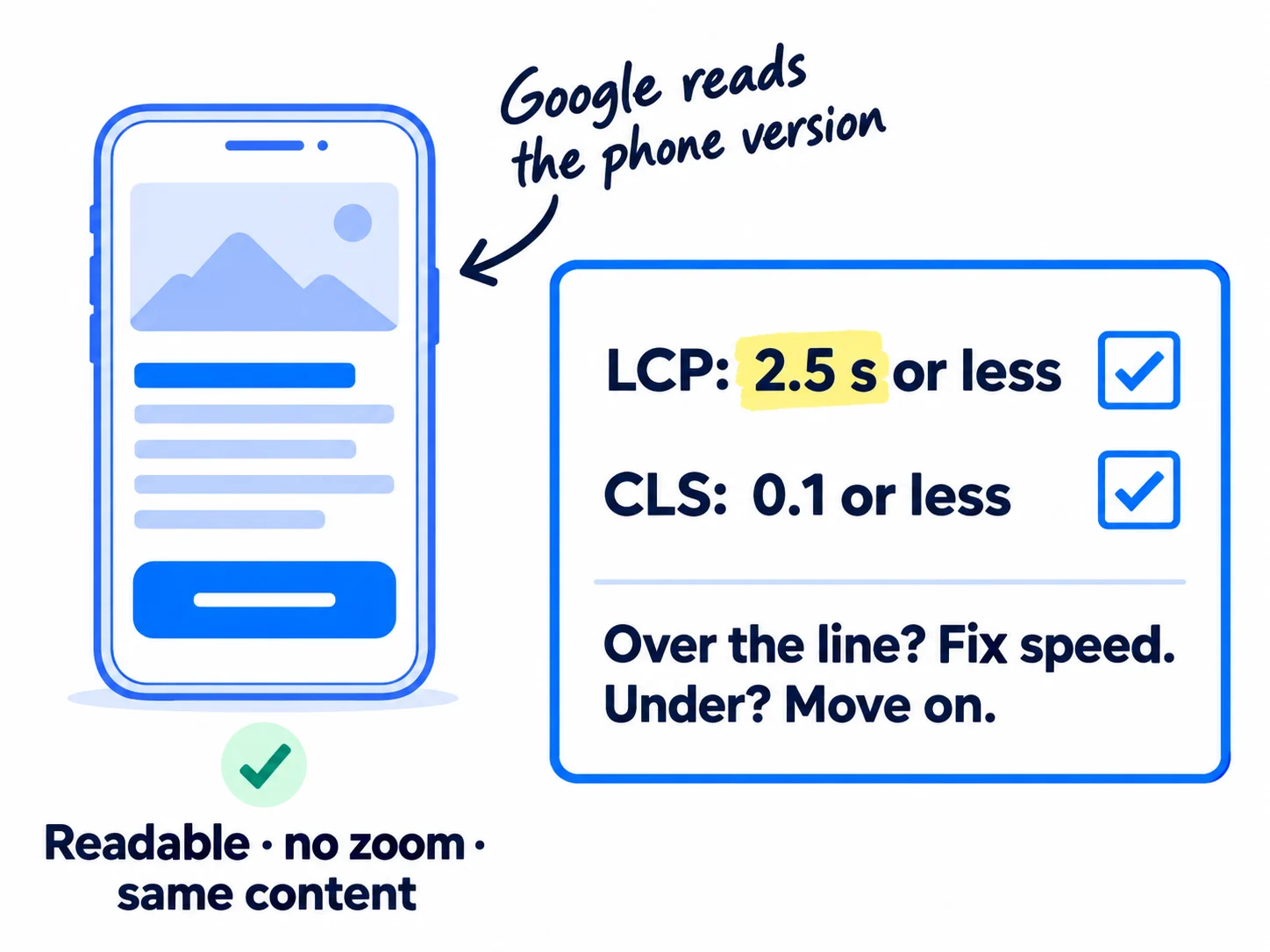
On your phone, check three things on each main page: you can read the text without zooming, you can tap every button easily, and the page shows the same words as on your computer. Google's guide says to "make sure that your mobile site contains the same content as your desktop site".
Then paste your home page into PageSpeed Insights, which is free, and look at the Mobile tab. A new site usually has no real-visitor data yet, so read the lab numbers. Google's targets for a good page are:
- LCP (how long the main content takes to appear): 2.5 seconds or less.
- CLS (how much the page jumps around while it loads): 0.1 or less.
If either is over the line, work through the fixes in how to improve website speed. If both are under, move on. Google says it "always seeks to show the most relevant content, even if the page experience is sub-par", so a fast empty site does not beat a useful slow one. Speed also changes how many visitors stay and buy, which matters more than rankings at your size.
If you run a D2C store: slow product pages cost you orders before they cost you rankings. If people visit but do not buy, work through fixing a store with traffic but no sales.
- Tool: your phone and PageSpeed Insights. Free.
- Time: 20 minutes.
- You will have: your main pages checked on a phone and a speed result for your home page.
- It worked if: all 5 pages read well on a phone with the same content, and the home page's mobile LCP is 2.5 seconds or less and CLS 0.1 or less, or the speed fixes are on your list.
- Common mistake: spending weeks on speed scores before you have 20 pages worth finding.
7. Check every new page the day you publish it, and your whole site every Sunday
Every day, test the page you just published. Every Sunday, check the whole site. A new page can break in ways the old ones did not: a new template, a forgotten "noindex", a broken link.
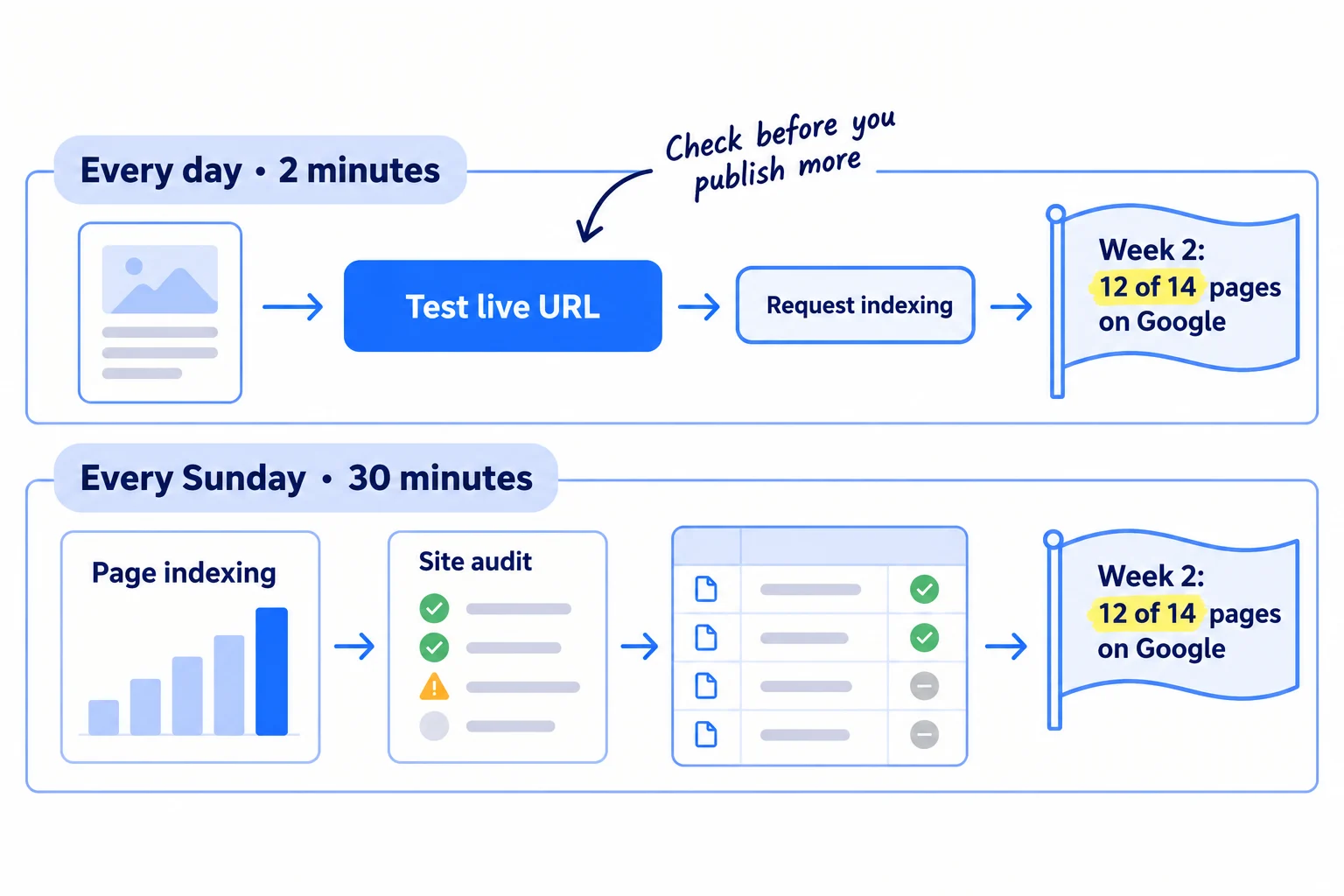
Every day, 2 minutes. Paste the new page into URL Inspection and click "Test live URL". You want "URL is available to Google". Click "View tested page" and check that your headline is in the HTML. Then click "Request indexing". There is a daily limit on requests, so keep them for new and changed pages. If you publish one page a day, this is one test a day. AI can draft the pages, but only this test tells you Google can read them.
Every Sunday, 30 minutes. Open Indexing, then Pages, in Search Console. Under "Why pages aren't indexed", look for any reason that names robots.txt, "noindex", "Not found (404)" or "Server error (5xx)" next to a page you want found. Those are this checklist's problems: fix them with steps 1, 3 and 5. "Crawled – currently not indexed" and "Discovered – currently not indexed" are different. They are normal on a new site, and the indexing guide shows what to do about them. Google says "You should not expect all URLs on your site to be indexed", only your real pages. Then re-run your Ahrefs site audit and fix any new errors. Fill in one row:
Week | Pages live | Pages on Google | New errors in the site audit | Pages with a robots.txt, noindex, 404 or 5xx reason | Fixed? yes / no
Pass line at week 2: at least 12 of 14 pages on Google.
The week-2 pass line is the same one used in how long SEO takes to work. After that, stop counting technical checks and start measuring SEO by searches, clicks and enquiries. Look at all of it together in your monthly marketing review. Each month, also ask ChatGPT a question your buyer asks and write down who it names.
- Tool: Google Search Console and Ahrefs Webmaster Tools.
- Time: 2 minutes a page every day, and 30 minutes every Sunday.
- You will have: every new page tested on the day, and one row a week.
- It worked if: at week 2, at least 12 of 14 pages show "URL is on Google" in URL Inspection, and the Sunday row shows 0 pages with a robots.txt, noindex, 404 or 5xx reason.
- Common mistake: publishing 30 pages on a new template before testing one. One "noindex" in a template can hide every page built from it.
See it done: Bugmoth's Sunday check at week 2
Week 2
| Pages live | Pages on Google | New audit errors | Pages with a robots.txt, noindex, 404 or 5xx reason | Fixed? |
|---|---|---|---|---|
| 14 | 13 | 1 | 0 | yes |
13 of 14 is over the pass line. The new error was a broken link in a new post, fixed the same day.
Why it works: They judge by the pass line and fix the one real error before writing more.
Where Scout7 helps
Scout7 does parts of steps 1, 4, 5 and 7.
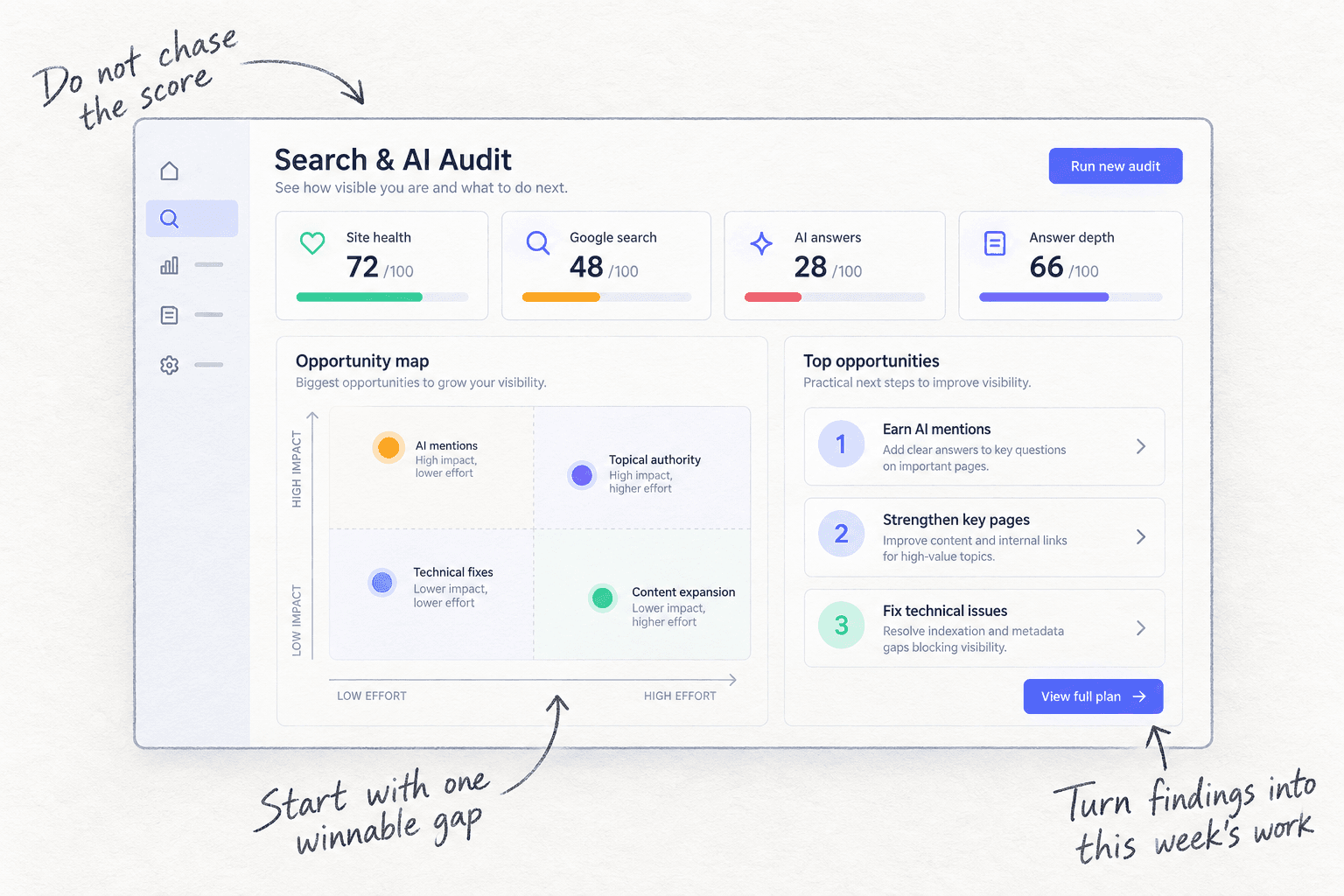
Steps 1 and 5. Scout7's Search & AI Audit crawls your site and scores its health, with a count of pages audited and a list of page-level fixes by how serious they are. It also checks your robots.txt, llms.txt and structured data. It finds the problems; you, or whoever runs your site, make the fixes. It does not edit a site it does not host.
Step 4. If Scout7 hosts your blog under your own domain at /content, it makes the sitemap.xml, robots.txt and structured data for those pages, so search tools read them as part of your site.
Step 7. Once you connect your own Google Search Console, Scout7 shows real impressions, clicks and positions next to its audit, so the Sunday check is in one place.
Your technical SEO checklist for a new website
0 of 15 done
Work through this list with an AI assistant
It drafts the work and keeps track of what is done.
Frequently asked questions
- What is technical SEO in simple words?
Technical SEO is making sure search tools can find, open and read every page on your site. It covers settings like robots.txt, "noindex", your sitemap, one secure address, broken links and speed. It does not make a page rank on its own. It removes what stops a good page from being found, so your keywords and pages get a chance.
- Is technical SEO important for a small new website?
The basics are. One setting left on from the build can keep your whole site out of Google, whatever you publish. For a site with under a few hundred pages, the checks in this guide are enough. Big-site work, such as log files and crawl budget, can wait until you have thousands of pages.
- Do I need llms.txt or schema markup to show up in ChatGPT or AI Overviews?
Not for Google. Google's July 2026 guide says you need no special AI files or markup, and that Google Search does not use them. What you need is a page Google can index and ChatGPT's OAI-SearchBot can read. If you want them anyway, see how to add llms.txt and schema markup, and how to get mentioned by ChatGPT.
- How often should I do a technical SEO audit?
Run the full checklist once, the day your site goes live. Then test each new page the day you publish it, and re-run your free site audit every Sunday. Run the full checklist again after any redesign, a new template or a move to a new domain. That is when settings get reset. Be wary of anyone who promises rankings from an audit alone.
- Which items on long technical SEO checklists can I skip?
On a small new site, skip log files, crawl budget, language tags (unless you have pages in several languages), and a perfect audit score. Google's own guide says meta keywords are not used, and that keywords in your domain name and word counts do not matter for ranking. Spend the time on pages people search for instead, such as comparison pages.
Sources
- 1.Google Search technical requirements — Google Search Central, updated 18 December 2025, checked 30 September 2026
- 2.Introduction to robots.txt — Google Search Central, updated 10 December 2025, checked 30 September 2026
- 3.Block Search indexing with noindex — Google Search Central, updated 10 December 2025, checked 30 September 2026
- 4.Check if a URL or image is available to Google — Google Search Console Help, checked 30 September 2026
- 5.robots.txt report — Google Search Console Help, checked 30 September 2026
- 6.Overview of OpenAI crawlers — OpenAI, checked 30 September 2026
- 7.Does Anthropic crawl data from the web, and how can site owners block the crawler? — Claude Help Center, updated 7 April 2026, checked 30 September 2026
- 8.Perplexity crawlers — Perplexity, checked 30 September 2026
- 9.Settings Reading screen — WordPress.org, checked 30 September 2026
- 10.Managing search engine indexing for your site — Wix Help Center, checked 30 September 2026
- 11.Hiding your site from search results — Squarespace Help Center, updated 22 May 2026, checked 30 September 2026
- 12.Password page — Shopify Help Center, checked 30 September 2026
- 13.Your site, your rules: new AI traffic options for all customers — Cloudflare, 1 July 2026
- 14.New options to manage AI traffic — Cloudflare Docs changelog, 1 July 2026, checked 30 September 2026
- 15.Understand JavaScript SEO basics — Google Search Central, updated 4 March 2026, checked 30 September 2026
- 16.The rise of the AI crawler — Vercel, 17 December 2024
- 17.Optimize your app for SEO and AI search — Lovable Documentation, checked 30 September 2026
- 18.URL Inspection tool — Google Search Console Help, checked 30 September 2026
- 19.How to specify a canonical URL — Google Search Central, updated 10 July 2026, checked 30 September 2026
- 20.Redirects and Google Search — Google Search Central, updated 14 April 2026, checked 30 September 2026
- 21.SEO Starter Guide — Google Search Central, updated 10 December 2025, checked 30 September 2026
- 22.Build and submit a sitemap — Google Search Central, checked 30 September 2026
- 23.Sitemaps report — Google Search Console Help, checked 30 September 2026
- 24.New XML Sitemaps functionality in WordPress 5.5 — Make WordPress Core, 22 July 2020, checked 30 September 2026
- 25.Introducing AI Performance in Bing Webmaster Tools — Bing Webmaster Blog, 10 February 2026
- 26.Search generative AI control — Google Search Console Help, checked 30 September 2026
- 27.Optimizing your website for generative AI features on Google Search — Google Search Central, updated 10 July 2026, checked 30 September 2026
- 28.Ahrefs Webmaster Tools — Ahrefs, checked 30 September 2026
- 29.Influencing your title links in search results — Google Search Central, checked 30 September 2026
- 30.Page indexing report — Google Search Console Help, checked 30 September 2026
- 31.Mobile-first indexing best practices — Google Search Central, updated 10 December 2025, checked 30 September 2026
- 32.Web Vitals — web.dev (Google), checked 30 September 2026
- 33.About PageSpeed Insights — Google for Developers, checked 30 September 2026
- 34.Understanding page experience in Google Search results — Google Search Central, updated 22 September 2026, checked 30 September 2026
- 35.Google indexed exactly zero of my pages after 2 weeks. Is this normal? — Indie Hackers, 8 June 2026
Next article to read
How to get your website indexed on GoogleAfter the checks pass, ask Google to find and list your pages.Read it nextRelated guides
- How to improve website speedComing soon
- How to add llms.txt and schema markupAdd llms.txt and schema markup in about an hour: check what your site builder already made, put Organization markup on your home page and the right markup on each kind of page, publish a short llms.txt, test each new page's markup the day you publish it, and fix errors every Sunday, knowing Google ignores llms.txt for its AI answers.
- How to use Google Search ConsoleUse Google Search Console on a new site: add it as a Domain property and submit your sitemap today, request indexing for each day's new page, and every Sunday write down non-brand impressions and clicks, pick 3 pages to improve and 5 new searches to write for, and check for problems.
- How to do SEO for a Shopify storeD2CDo SEO for your Shopify store with a few products and no budget: check Google can see your store, give every product and collection page one phrase shoppers type, publish 1 buying-question page a day on your Shopify blog, ask 20 sites a day for a link, and check Search Console every Sunday.
Guides that link here
- How to get your website indexed on Google
- How to use Google Search Console
- How to do SEO for a Shopify storeD2C
- How to add llms.txt and schema markup
- How to get your brand mentioned by ChatGPT
- How to get your company recommended by ChatGPT as a supplierB2B
- How to get your products recommended by ChatGPTD2C
- How to show up in Google AI Overviews
- How to build a free tool that brings in leadsSaaS
- How to get traffic to a new website for free
- How to market a SaaS productSaaS
- How to market your product as a technical founderSaaS
- How long does SEO take to work?
- How to find keywords for SEO
- How to get backlinks for a new website
- How to get backlinks from news websites
- How to list your products on Google Shopping for freeD2C
- How to make an article rank higher on Google
- How to set up a Google Business Profile
- How to write a blog post that ranks on Google
- How to write competitor comparison and alternative pages
Cite this page
Dinesh Bypilla (2026). Technical SEO checklist for a new website. Scout7 Academy. https://scout7.ai/academy/seo/technical-seo-checklist-for-a-new-website
Written by Dinesh Bypilla, Agentic systems engineer at Scout7. Reviewed by Murali Sid. Last checked 30 September 2026.
Quote any part of this guide with a link back to this page. © 2026 Scout7.
Markdown version of this page: https://scout7.ai/academy/seo/technical-seo-checklist-for-a-new-website.md