



How to use Google Search Console
Use Google Search Console on a new site: add it as a Domain property and submit your sitemap today, request indexing for each day's new page, and every Sunday write down non-brand impressions and clicks, pick 3 pages to improve and 5 new searches to write for, and check for problems.
ByDinesh BypillaReviewed byMurali SidLast checked 20 min read
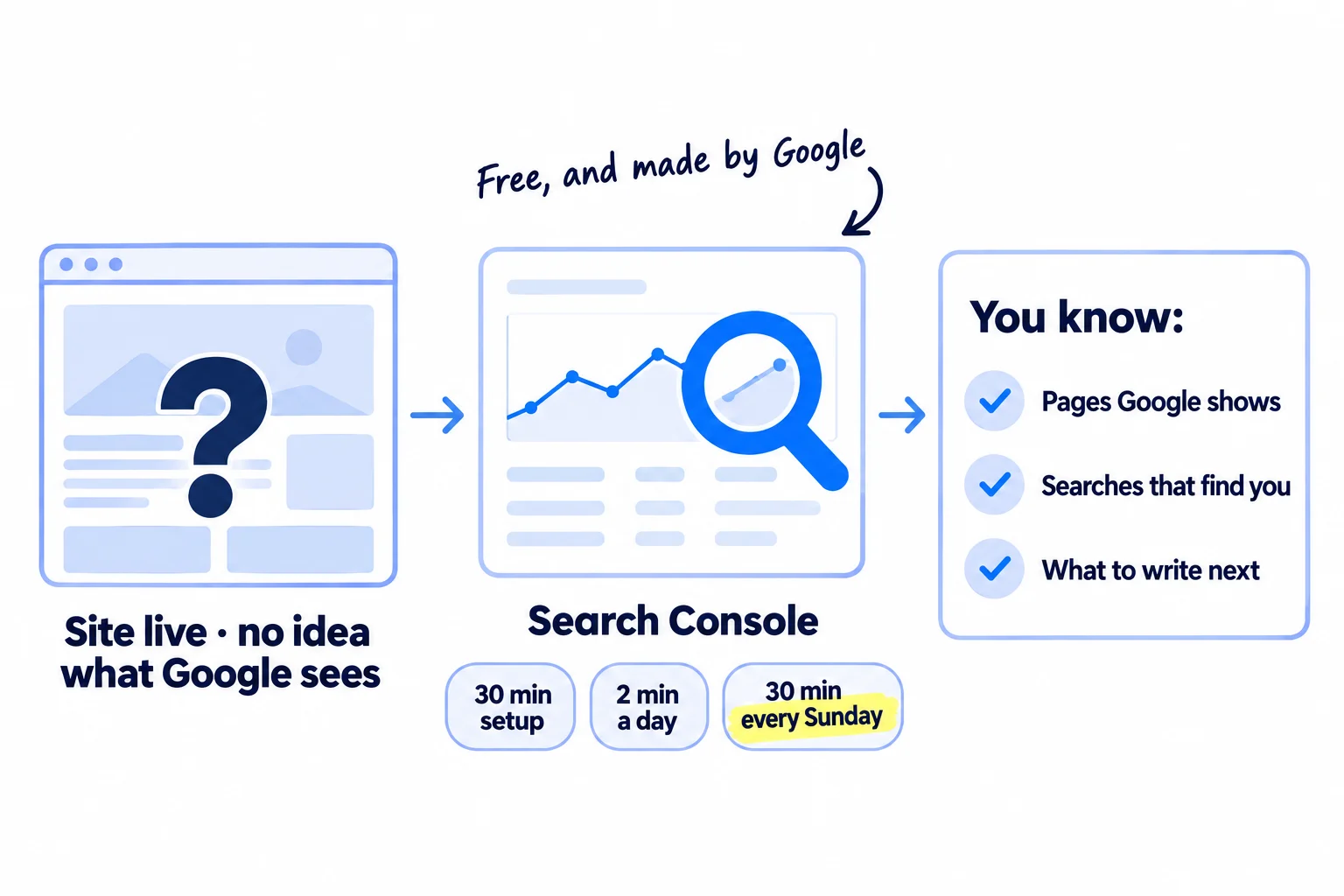
Your site is live, you publish pages, and you have no idea whether Google shows any of them or what people type to find you. Here is how to use Google Search Console, Google's free tool for site owners, as a routine: set it up once today, send each new page to Google the day you publish it, and spend 30 minutes every Sunday turning its numbers into next week's work. Without it you keep writing pages blind, next to your daily work to find customers, and you only find out at month 6 that half of them never reached Google.
Do these three things
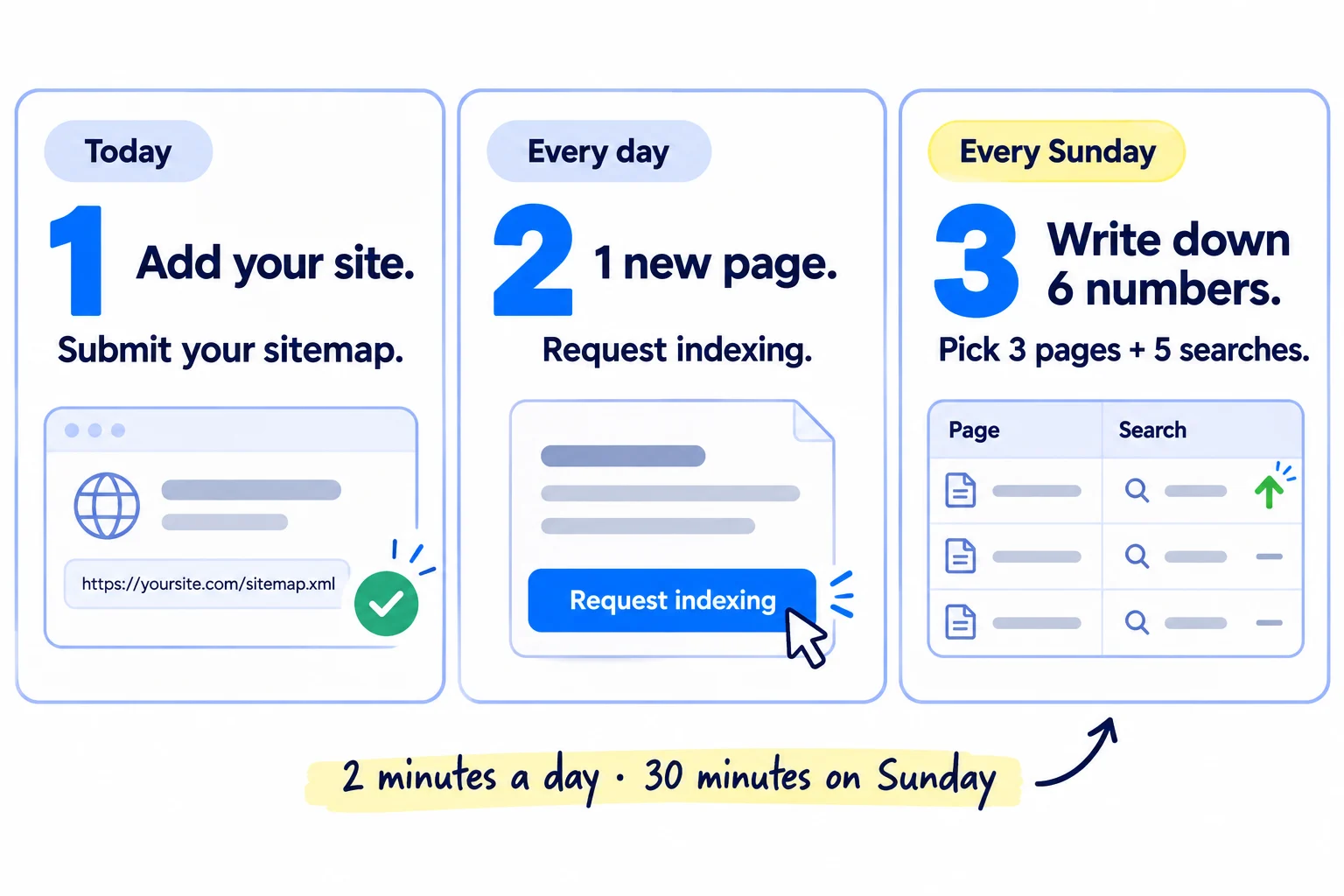
About 30 minutes to set up, 2 minutes a day and 30 minutes every Sunday. Data starts a few days after you add your site, so your first Sunday numbers may be zero.
Show the three actions in fullHide the full list
- Today: add your site to Google Search Console as a Domain property, submit your sitemap, and check that your 5 main pages say "URL is on Google".
- Every day: publish 1 page that answers a search your buyer makes, paste it into URL Inspection and click "Request indexing".
- Every Sunday: in 30 minutes, write down this week's non-brand impressions and clicks, pick 3 pages at position 8 to 20 to improve and 5 new searches to write pages for, and check the Overview for problems.
Get help doing these
ChatGPT or Claude reads this guide and works through it with you.
1. Add your site to Google Search Console as a Domain property
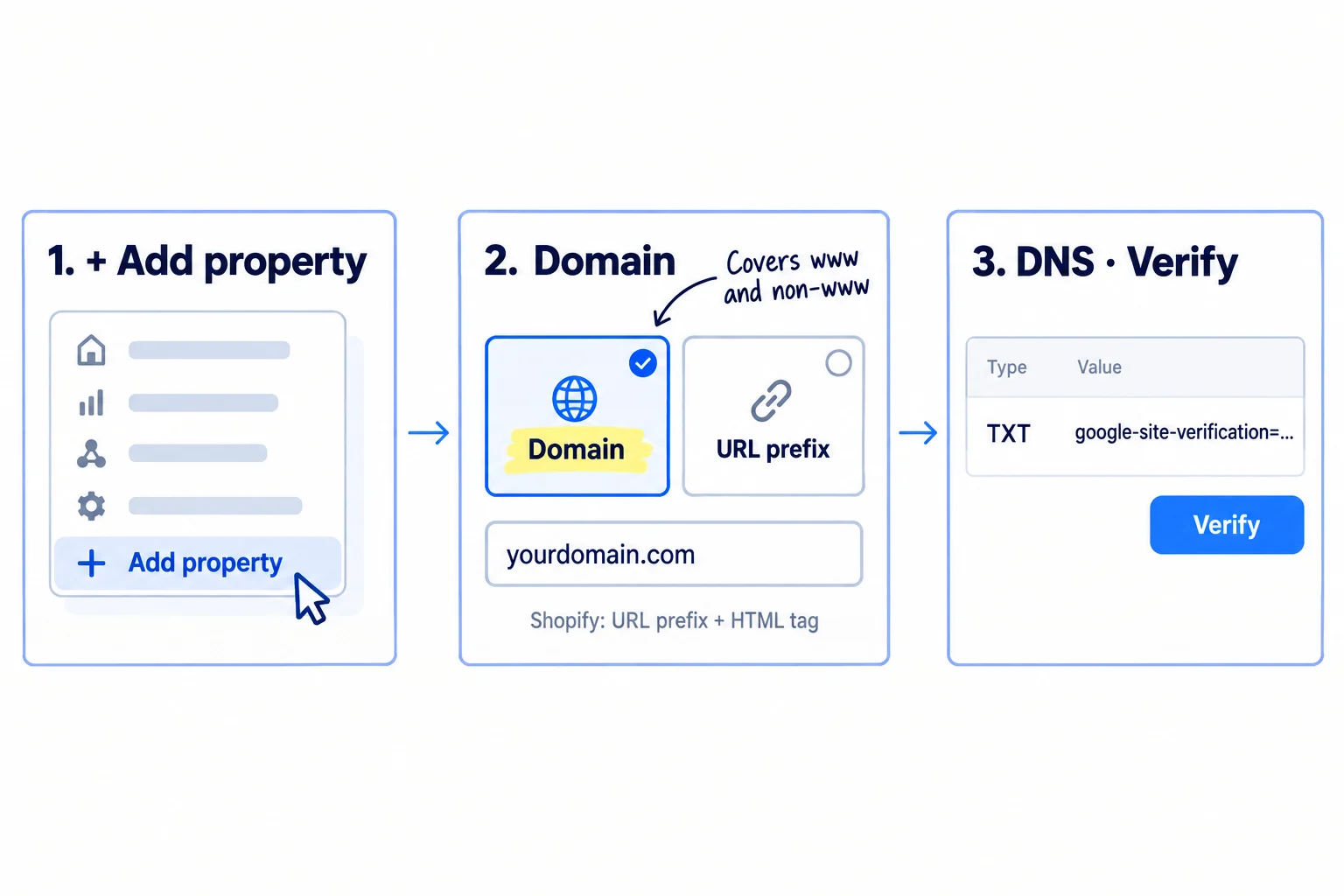
To add your website to Google Search Console, open Search Console with your Google account, click "+ Add property", choose Domain and prove you own the domain with one line in its DNS settings. You need a live site on your own domain; if you do not have one yet, make a website for your business first. A Domain property covers every version of your site (with and without www, http and https), so no page is left out. It is free.
- 1
Add the property
Go to Search Console, open the property drop-down at the top left and click "+ Add property". Choose Domain and type your domain with no https:// and no www, such as yourdomain.com.
- 2
Verify it
Search Console shows a TXT line. Log in where you bought your domain, open the DNS settings, add a TXT record, paste the line and save. Go back and click Verify. If it fails, wait an hour and click Verify again: new DNS lines can take time to show.
- 3
Let the data start
Google says data "takes a few days" to start after you add the property. Do step 2 now; the numbers in step 4 come later.
If you cannot edit your DNS, choose URL prefix, type your full address exactly as it shows in the browser (with https:// and www if you use it) and pick the HTML tag method. If you use WordPress, Google's own free Site Kit plugin can verify the site for you.
Search Console only shows Google. Bing Webmaster Tools does the same job for Bing, and it can import your site from Search Console, which skips verification. Do it now; the free traffic guide covers the rest of getting your site read by Bing and ChatGPT.
If you post on YouTube, Instagram, TikTok or X, add that account too. Since July 2026, Search Console has platform properties: from the same "+ Add property" menu, pick the platform and log in. It shows which searches bring people to your posts on Google. Google is still rolling it out, so you may not see it yet. It pairs well with a YouTube channel for your business.
If you run a D2C store on Shopify: turn the store password off first. Then add a URL prefix property with your https:// address, choose "HTML tag", copy the tag, and in Shopify open Online Store, your theme, "Edit code", then
theme.liquid. Paste the tag straight below<head>, save, and click Verify. Shopify says it can take up to 15 minutes. The rest of your Shopify SEO builds on this.
If you run an agency: the client owns the property, in their own Google account, and adds you. Ask them to open Settings, then "Users and permissions", click "Add user" and give your email "Full" access. If you set it up for them, add the client as Owner the same day. Put this in your client onboarding list. The same access lets you show web design clients what ongoing SEO work would look like.
Subject: Access to your Google Search ConsoleHi [name],To see which searches bring people to [site], I need access to your Google Search Console. It takes 2 minutes:
Open search.google.com/search-console and pick [site] at the top left.
Click Settings, then "Users and permissions", then "Add user".
Add [your email] with the permission "Full".
If [site] is not in Search Console yet, tell me and I will send you the one line to add to your domain settings. You stay the owner.Thanks,
[your name]
- Tool: Google Search Console, free. Your domain's DNS settings, or your site builder.
- Time: 15 to 30 minutes.
- You will have: a verified property for your whole site, and your site imported into Bing Webmaster Tools.
- It worked if: your site shows in the property drop-down with no "unverified" note, and within a few days the Performance chart shows a line.
- Common mistake: a URL-prefix property for the wrong version of the site, such as http:// when your site runs on https://, so most pages never show up. The agency version of this mistake: the property sits in a freelancer's own account and disappears when they leave.
2. Submit your sitemap and check your main pages are on Google
Submitting your sitemap tells Google where your list of pages is. Then check your 5 most important pages one by one, so you know today, not in 3 months, whether Google has them.
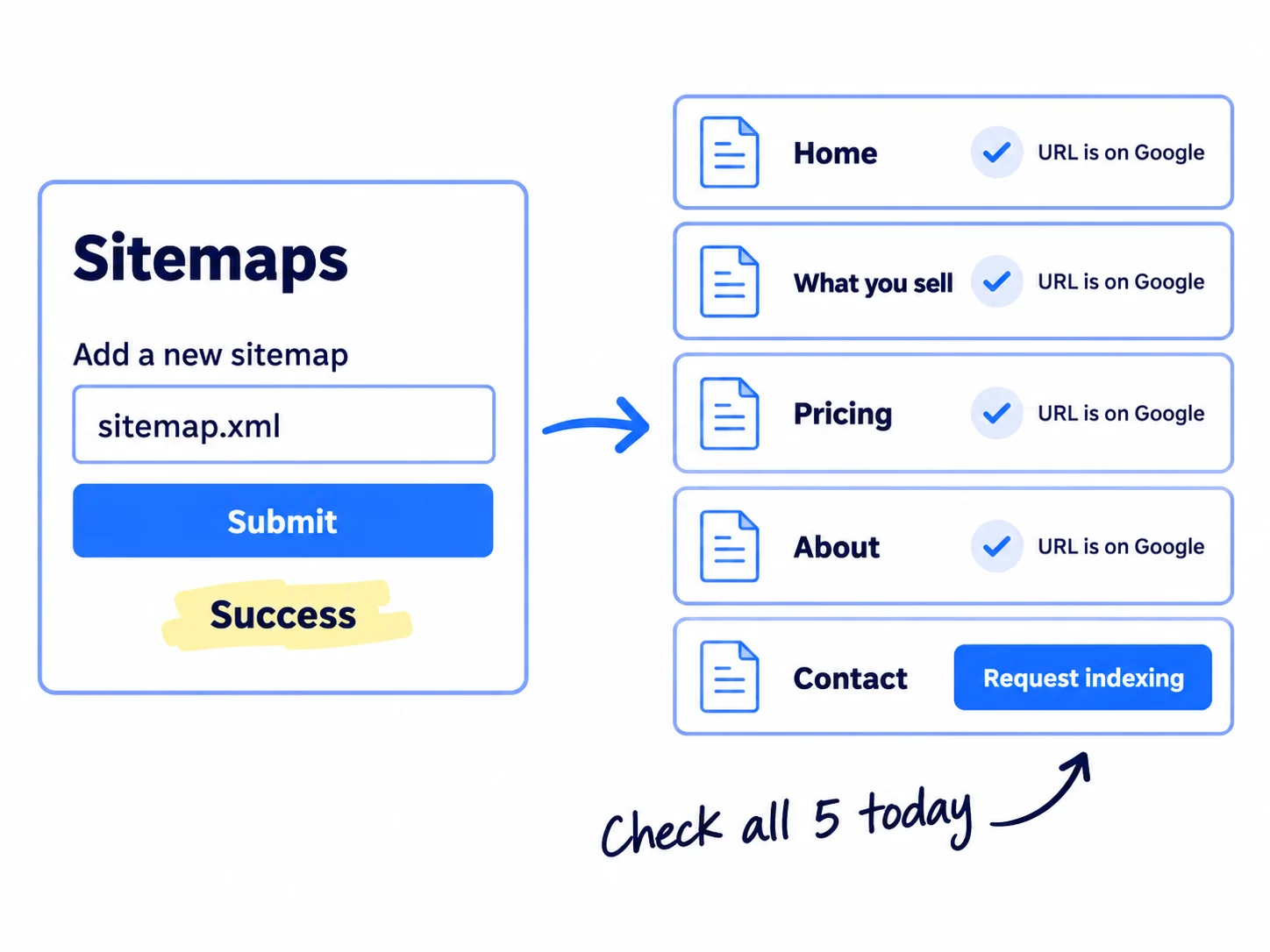
Submit the sitemap. In the left menu, open Indexing, then Sitemaps. In "Add a new sitemap", type the file name, usually sitemap.xml, and click Submit. Most site builders, including Shopify, Wix, Squarespace and WordPress with an SEO plugin, make this file for you. Refresh after a minute: the status should say "Success". "Couldn't fetch" means Google cannot open the file; open yoursite.com/sitemap.xml in a private browser window and fix what stops it.
Check your 5 main pages. Paste your home page address into the bar at the very top of Search Console and press Enter. This is URL Inspection. Do the same for the page that says what you sell, pricing, about and contact.
- "URL is on Google": done. Google has the page and can show it.
- "URL is not on Google": click "Test live URL". If the live test passes, click "Request indexing". If it fails, it tells you why, often a "noindex" setting or a robots.txt rule, and the indexing guide shows how to fix each reason.
Check one new setting. Since 31 August 2026, every site has Settings, then "Search generative AI". It should say "Include my site's links and content in Search generative AI features", which is the default. Google says if you exclude your site, "You won't receive any traffic or impressions from these features", meaning AI Overviews and AI Mode. Leave it on Include.
If you run a B2B company or an agency that meets clients in person: also set up a Google Business Profile. Search Console does not show Google Maps results; the profile has its own numbers.
- Tool: Google Search Console.
- Time: 20 minutes.
- You will have: a sitemap with the status "Success", and your 5 main pages checked, with indexing requested for any that were missing.
- It worked if: the sitemap says "Success" today, and all 5 pages say "URL is on Google" within 2 weeks. If any do not, work through the technical SEO checklist.
- Common mistake: a store password, a "hide from search engines" setting or a "Disallow: /" line left on from when the site was being built. Any one of them keeps the whole site off Google, and the sitemap status alone will not tell you.
3. Request indexing for each new page the day you publish it
Every day you publish a page, paste its address into URL Inspection and click "Request indexing". It takes 2 minutes, and it puts the page in Google's queue the same day instead of waiting for Google to find it.
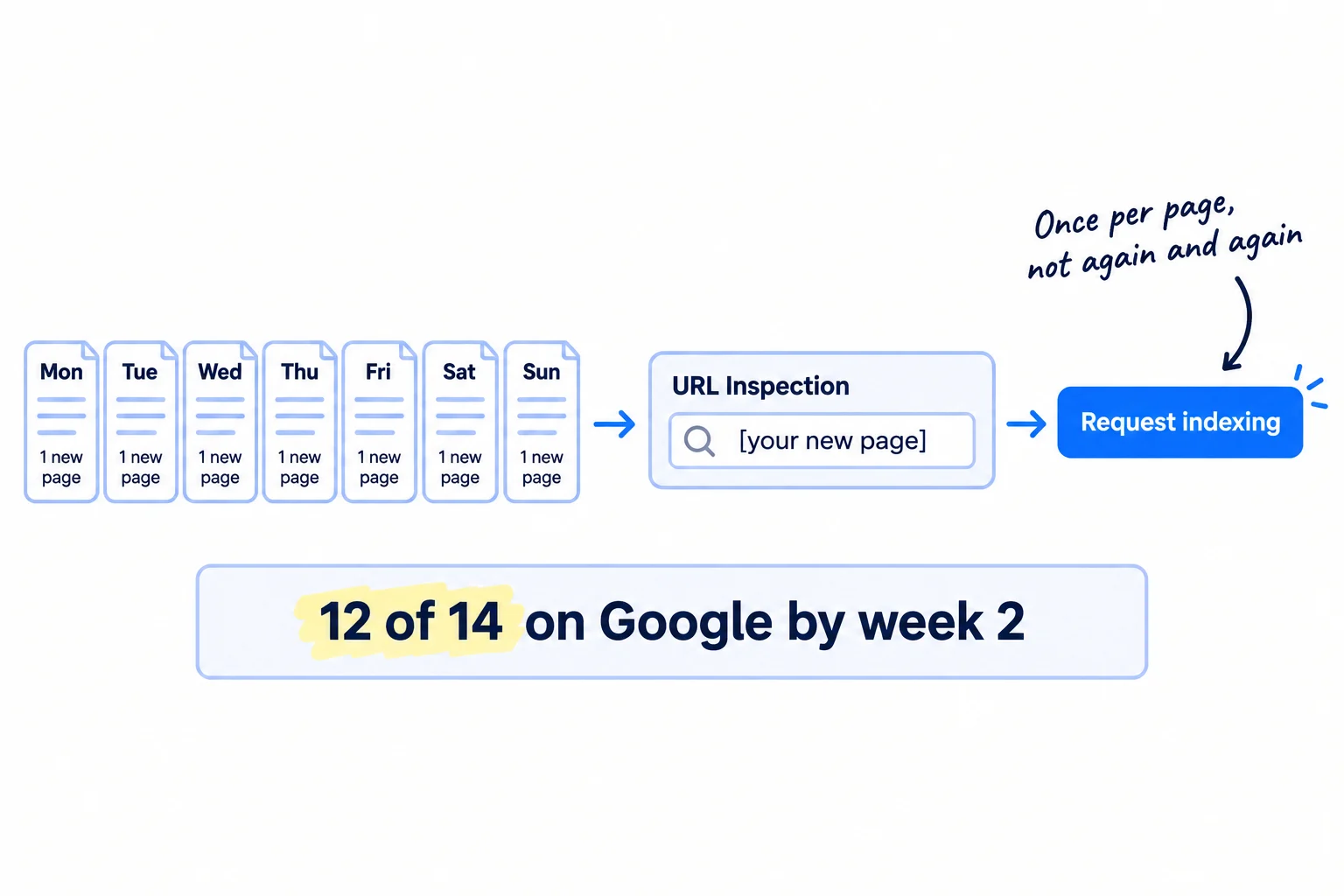
The page itself is the real daily work. Publish 1 page a day that answers one search a buyer makes, taken from your keyword list. Let ChatGPT or Claude draft it in 10 minutes, the way AI content creation works best; you spend about 50 minutes adding what only you know: a real price, a photo, a customer's words, a step you tested. How to write a post that ranks covers the writing.
Then, in Search Console:
- Paste the new page's full address into the URL Inspection bar and press Enter.
- It will usually say "URL is not on Google", because it is new. Click "Test live URL" and wait for the result.
- If the live test says the page can be indexed, click "Request indexing".
Google says indexing "typically takes only a day or so, but can take much longer", and that asking again for the same page "won't get it crawled any faster". There is also a daily limit on requests. So ask once per new page, and let your sitemap tell Google about everything else. When you update an old page, request indexing for it once too.
If you run a D2C store: your new product and collection pages count as today's page. Shopify adds them to your sitemap on its own, but still request indexing for each new product, and give it the size, material and delivery time in the first lines of its product description.
- Tool: Google Search Console, and ChatGPT or Claude to draft the page.
- Time: 2 minutes in Search Console, next to about 1 hour for the page.
- You will have: every new page sent to Google on the day it went live.
- It worked if: at least 12 of your first 14 daily pages say "URL is on Google" within 2 weeks, the week-2 check. If fewer do, stop adding pages and fix indexing first.
- Common mistake: clicking "Request indexing" on the same page every day, or on 50 old pages at once. You hit the daily limit, and it does not help: the sitemap already lists them.
4. Every Sunday, write down six numbers from Search Console
The Performance report shows how often Google showed your pages on its results page (impressions), how often people clicked, and where you stood. Every Sunday, set it up the same way and copy six numbers into one row of a sheet. The same row every week is how you see if SEO is working.
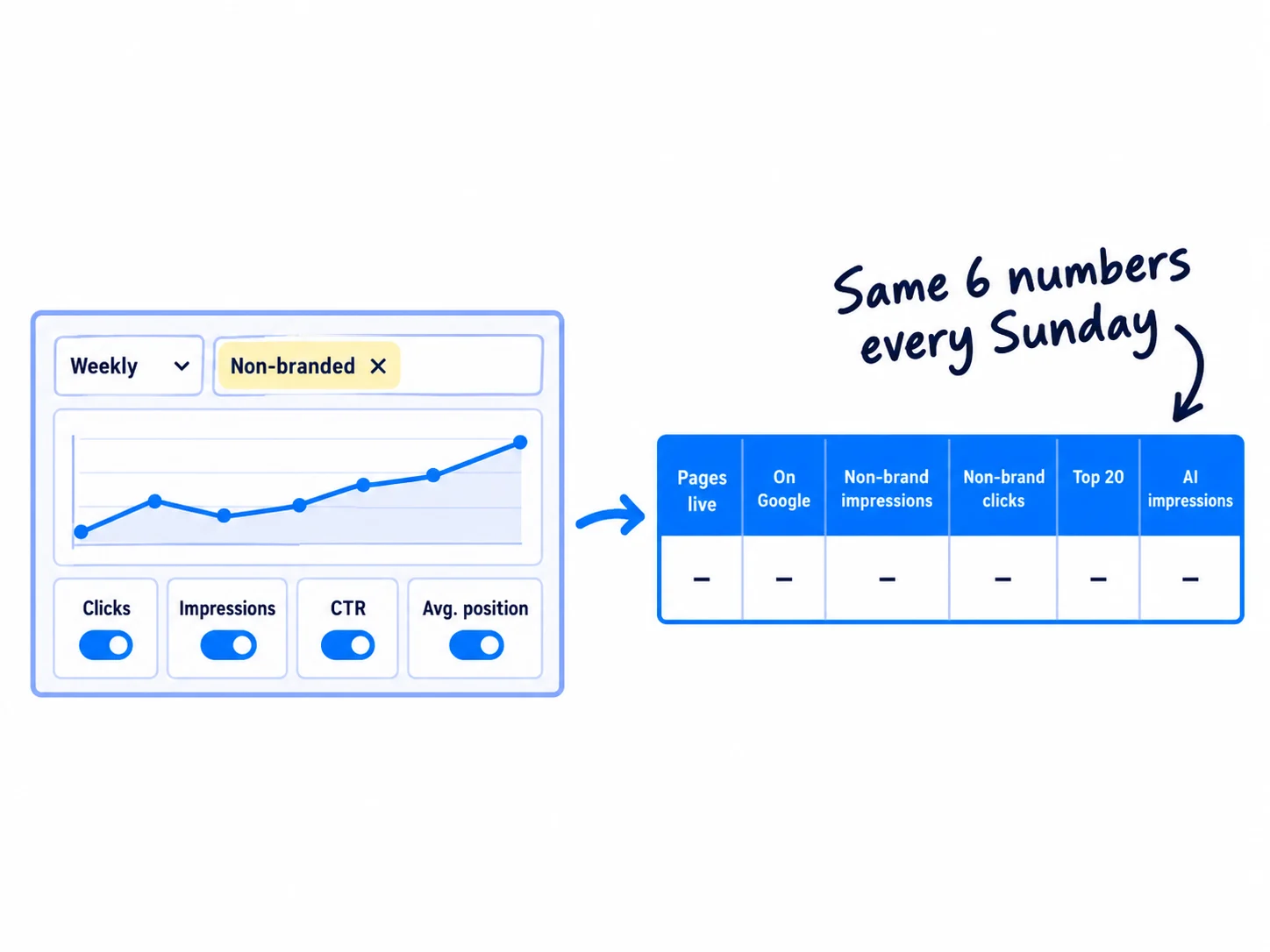
Set up the report, in this order:
- Open Performance, then Search results. Set the date to the last 3 months.
- Click the "Daily" drop-down above the chart and choose Weekly. Single days jump around; weeks show the trend.
- Click all four headings above the chart: Total clicks, Total impressions, Average CTR and Average position. CTR is clicks divided by impressions. Average position is your highest spot on the results page, averaged over every time you were shown: 1 is the top, 11 is usually page 2.
- Take out searches for your own name. They come from people who already know you, not from your pages. If you see "Branded" in the filter bar, choose Non-branded. Google only shows that filter once a site has enough searches, so most new sites will not see it. Then click "+ Add filter", choose Query, choose "Custom (regex)", switch it to "Doesn't match regex", and type your names like this:
yourbrand|your brand|yourproduct. - Open the Pages tab. Count the pages with any impressions, and the pages with an average position under 20.
Then open the Generative AI performance report from the left menu. Since 31 August 2026, every site has it. It counts how often your pages were shown in AI Overviews and AI Mode. It shows impressions only: no clicks and no searches. If it says there is no data, your pages have not been shown in AI answers yet. That is normal for a new site.
Week | Pages live | Pages on Google | Non-brand impressions | Non-brand clicks | Pages in top 20 | AI impressions | Signups / enquiries / orders that said "Google"
Change this week (also added as a chart note): [what you published or changed]
Next check date: [week 2 / month 1 / month 3 / month 6] | Pass line: [from how long SEO takes to work] | On track? yes / no
"Pages on Google" comes from the Page indexing report in step 6. The last column comes from a "Where did you find us?" question on your signup, contact or checkout form. That is self-reported attribution, and it catches buyers who read your page, then came back by typing your name.
Once a month, bring the last 4 rows to your monthly marketing review. Links you share yourself in posts and messages should carry UTM parameters, so your analytics never mixes them up with visits from Google.
Add a note to the chart when you change something. Right-click the Performance chart, choose "Add annotation", and write what you did in under 120 characters, such as "New pricing page" or "Rewrote 3 titles". Everyone with access sees it. In 2 months you will know why a line moved.
Two things will fool you:
- Impressions before 27 April 2026. Google found a logging error that over-counted impressions from 13 May 2025 to 27 April 2026, and it did not correct the old data. Clicks were right. Never compare impressions from before that date with after it.
- Clicks alone. When an AI Overview answers a search, many people never click. A February 2026 Ahrefs study found the top result got 58% fewer clicks when an AI Overview showed. So read impressions, clicks and the last column together, and measure SEO by what buyers do.
If you run a B2B company: buyers often read a page, then email you days later. Ask every new enquiry where they found you and log it, or search will look like it brought nothing. Track which channel brought each deal shows how.
If you run an agency: fill one row per client every Sunday and put the last 4 rows in your monthly client report. It answers the "when will SEO work?" question with the client's own numbers, which makes it easier to explain SEO timelines.
- Tool: Google Search Console and Google Sheets.
- Time: 15 minutes every Sunday.
- You will have: one row a week of the same six numbers, plus buyers who said "Google".
- It worked if: there is a new row every Sunday, and after 30 pages, at least 10 of them have non-brand impressions (the month-1 pass line). If not, your pages answer searches nobody makes: redo the keyword check.
- Common mistake: counting searches for your own name as SEO results, or judging by one day's clicks. Both make you think SEO works, or fails, when you cannot tell yet.
See it done: Bugmoth's Sunday row in week 6
Bugmoth is a made-up bug-reporting tool for small web teams. It costs $19 a month per team, with a 14-day trial.
Week 6 of publishing 1 page a day
| Pages live | Pages on Google | Non-brand impressions | Non-brand clicks | Pages in top 20 | AI impressions | Signups that said "Google" |
|---|---|---|---|---|---|---|
| 42 | 38 | 610 | 9 | 6 | 140 | 1 |
31 of the 42 pages have non-brand impressions, so they pass the month-1 line and keep publishing.
Why it works: Only non-brand searches are counted, so the row shows what their pages bring, not what their Reddit comment brought.
5. Every Sunday, turn your queries and pages into this week's work
Search Console tells you what to do next. Every Sunday, after you fill in the row, use the Pages and Queries tabs to pick 3 pages to improve and 5 new searches to write pages for, and fix any page that is shown near the top but never clicked.
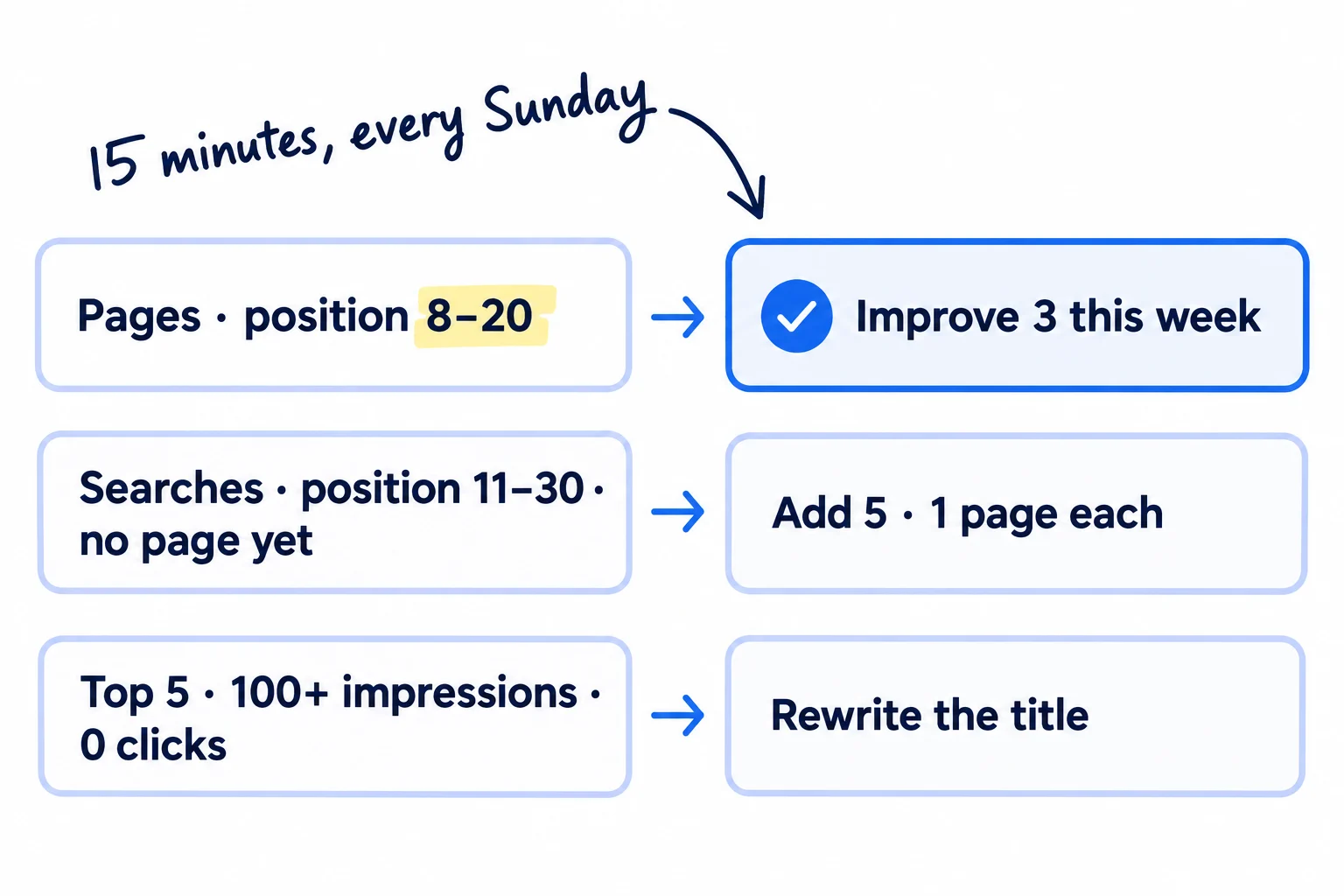
Keep the report set up as in step 4: last 3 months, Non-branded, all four metrics on. Then apply three rules:
- Improve 3 pages at position 8 to 20. Open the Pages tab and sort by impressions. Pick the 3 pages with the most impressions whose average position is between 8 and 20. They are already on page one or two for something. Click one, then open the Queries tab: those are the searches that show it. Improve each page this week, in place of that day's new page, with the steps in how to make an article rank higher. This starts to pay off from about month 3.
- Add 5 searches at position 11 to 30 with no page of their own. Clear the page filter, open the Queries tab and sort by impressions. Find searches at position 11 to 30 that a buyer would type and that no page of yours answers head-on. Add 5 to the top of your keyword list, put them in your content calendar and give each one its own page in the coming days. A search with "alternative" or "vs" in it gets a comparison page. Skip searches a buyer would never type, however many impressions they have.
- Rewrite the title of any page in the top 5 with no clicks. Set the date to the last 28 days. If a page has an average position of 5 or better and 100 or more impressions, but 0 clicks, people see it and pass. Rewrite its title and description so they answer the search in plain words, then request indexing once and set the date back to 3 months.
The Insights report shows the same data more simply, including "trending up" searches. Use it to spot new searches quickly, but make the decisions here, where you can see position.
Improve (position 8–20, most impressions):
[page] — searches that show it: [from the Queries tab]
[page] — searches: […]
[page] — searches: […]
New pages (position 11–30, no page of their own):
[search] 2. [search] 3. [search] 4. [search] 5. [search]
New title (top 5, 100+ impressions, 0 clicks): [page] — old title: […] — new title: […]
If you run a SaaS: check that the pages with clicks send people to try your product. If a page gets clicks but no signups, fix the page before the signup before you write more like it.
If you run a B2B company: if pages get clicks but no enquiries, get more leads from your website first. A case study named by the buyer's kind of business often answers a search from step 5 too.
If you run a D2C store: a product page with impressions but no clicks often has a title that names your brand, not the product type. Put the product type and the need first. If a page gets visits but no orders, fix the store, and add your products to Google's free shopping listings.
- Tool: Google Search Console and your keyword sheet.
- Time: 15 minutes every Sunday.
- You will have: 3 pages to improve this week, 5 new searches on your list, and any zero-click titles rewritten.
- It worked if: within 4 weeks, at least 2 of the 3 improved pages gain impressions or move up in average position. Leave an improved page alone for 4 weeks before you judge it.
- Common mistake: rewriting the same page every Sunday, so Google never settles on it, or chasing big searches no buyer makes because they show the most impressions.
See it done: Bugmoth's work for week 7
From the Pages and Queries tabs, last 3 months
| Rule | What they found | This week's job |
|---|---|---|
| Pages at 8–20 | "How clients can report website bugs" (position 12, 190 impressions), "Screenshot tools for website feedback" (14), "Jira alternative for small web teams" (17) | Improve all 3 this week, one every other day |
| Searches at 11–30, no page | "screenshot bug report tool", "client feedback on staging site", "visual bug tracker free", "how to collect website feedback from clients", "bug reporting widget for website" | 5 new pages, one a day from Tuesday |
| Top 5, 0 clicks | "Bug report template for web agencies" page, shown for "bug report template" (position 4, 130 impressions, 0 clicks) | New title: "Free bug report template for client websites (copy and paste)" |
Why it works: Each job comes from a rule and a number in the report, so nothing is picked on a feeling.
6. Every Sunday, check the four problem reports in 5 minutes
Four reports warn you when something is wrong: the Overview, Page indexing, Sitemaps and Core Web Vitals. Look at them for 5 minutes every Sunday. Most weeks there is nothing to do. Search Console also emails you when it finds a new problem, so open those emails the day they come.
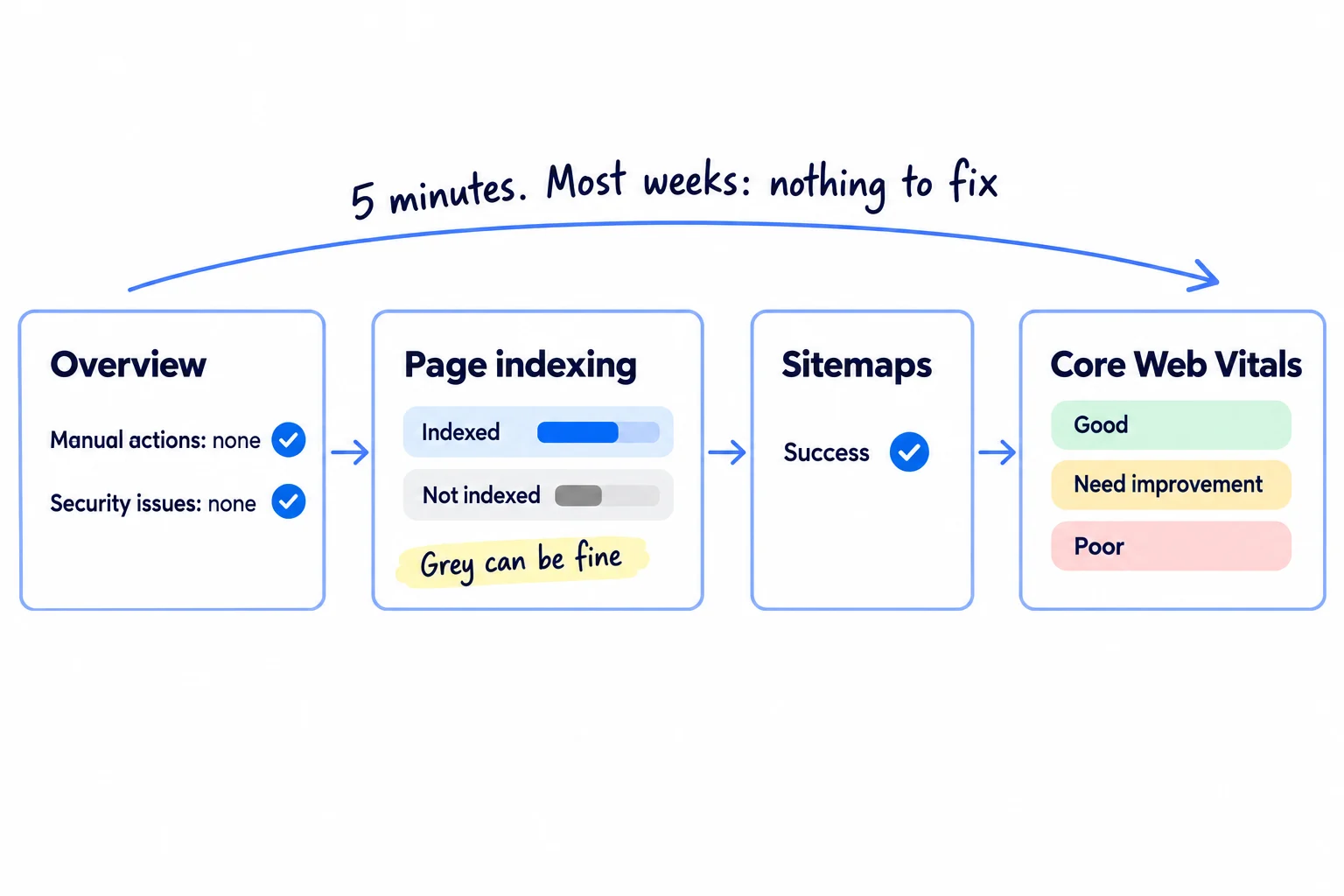
- Overview. At the top of the left menu. Look for a manual action (Google has taken a page or the whole site out of search by hand for breaking its rules) or a security issue (someone broke into your site or added harmful code). Either one comes first, before any other SEO work. The Manual actions and Security issues reports say what to fix.
- Page indexing (in the left menu, under Indexing). It lists pages Google has and has not indexed, with a reason for each. Only your important pages matter. Rows like "Page with redirect", "Alternate page with proper canonical tag" and "Excluded by 'noindex' tag" are usually fine: they are copies or pages you chose to hide. Google itself says that if your site has fewer than 500 pages, "you probably don't need to use this report", and URL Inspection on your key pages is enough. If an important page shows "Discovered – currently not indexed" or "Crawled – currently not indexed", the indexing guide says what to change. Google finds pages through links, so link each new page from your other pages, and work on links from other sites: backlinks, such as links from news sites.
- Sitemaps. The status should still say "Success".
- Core Web Vitals. It sorts pages into Good, Need improvement and Poor, from real visitors' phones and computers. "No data available" means too few visitors so far; that is normal for a small site. If pages show as Poor, work on your site speed.
You can skip the rest of the menu for now: Crawl stats, Removals, Links and the rich result reports matter once a site is larger, or when a guide sends you there, such as adding schema markup.
- Tool: Google Search Console.
- Time: 5 minutes every Sunday.
- You will have: a short list of real problems, usually empty.
- It worked if: there is no manual action and no security issue, the sitemap says "Success", and every important page is indexed.
- Common mistake: trying to turn every grey "not indexed" row green. Redirects, duplicates and hidden pages are meant to be there, and the time is better spent on step 5.
Where Scout7 helps
Scout7 does parts of steps 4, 5 and 6.
Steps 4 and 5. In the Scout7 app, connect your own Search Console property and Scout7 shows your real impressions, clicks and positions next to its search and AI audit. You own the property and authorise the connection. This part works in the app, not from a chat with your assistant yet. For the 5 new searches, keyword intelligence gives each one its monthly searches, difficulty and who leads on Google and in AI answers, and Content Co-Pilot drafts the page from your answers to its questions. You edit and approve every page; nothing is published without your approval.
Step 6. The site audit reports page-level problems by how serious they are, and checks robots.txt, llms.txt and structured data. It tells you what to fix; you make the fixes on your own site.
Your Google Search Console checklist
0 of 12 done
Work through this list with an AI assistant
It drafts the work and keeps track of what is done.
Frequently asked questions
- Is Google Search Console free?
Yes. Search Console is free for any site owner, with no paid plan. You only need a Google account and a way to prove you own the site, such as your domain's DNS settings. Google's free Site Kit plugin for WordPress and Bing Webmaster Tools are free too. Adding your site does not change how Google ranks it; it only lets you see and fix things.
- How long does it take for data to show in Search Console?
Google says data starts "a few days" after you add your site. A new page usually gets indexed within a day to a few weeks, and it only shows impressions once Google shows it for a search. So a new site often sees zero for its first weeks. Judge it by the check dates in how long SEO takes to work.
- What is the difference between Google Search Console and Google Analytics?
Search Console shows what happens on Google before someone reaches you: which searches showed your pages, how often and how many clicked. Google Analytics shows what people do once they are on your site, from every source. Use Search Console for SEO, and Analytics with conversion tracking to see which visits became signups or orders.
- Is Google Search Console accurate?
Mostly, with limits. It leaves out rare searches to protect privacy, so the Queries table never adds up to the total. Average position is an average across many searches, not one fixed spot. And a logging error over-counted impressions from May 2025 to 27 April 2026. Compare week with week, and do not mix numbers from before and after that date.
- Does Search Console show AI Overviews and ChatGPT?
It shows Google's AI answers. Since 31 August 2026, the Generative AI report counts how often your pages appeared in AI Overviews and AI Mode, but only impressions. It shows nothing from ChatGPT, which is not Google. To see that, ask ChatGPT your buyers' questions, track AI traffic and mentions, and work on getting mentioned by ChatGPT.
Sources
- 1.Add a website or platform property to Search Console — Search Console Help, checked 30 September 2026
- 2.Verify your site ownership — Search Console Help, checked 30 September 2026
- 3.Managing owners, users, and permissions — Search Console Help, checked 30 September 2026
- 4.Finding and submitting your sitemap — Shopify Help Center, checked 30 September 2026
- 5.Manage your sitemaps using the Sitemaps report — Search Console Help, checked 30 September 2026
- 6.URL Inspection tool — Search Console Help, checked 30 September 2026
- 7.Ask Google to recrawl your URLs — Google Search Central, checked 30 September 2026
- 8.Search generative AI control — Search Console Help, rolled out to all sites 31 August 2026, checked 30 September 2026
- 9.Performance report (Search results): Overview and basic setup — Search Console Help, checked 30 September 2026
- 10.Performance report (Search results): Advanced filtering and comparison — Search Console Help, checked 30 September 2026
- 11.How clicks, impressions and position are counted — Search Console Help, checked 30 September 2026
- 12.Introducing weekly and monthly views in Search Console — Google Search Central Blog, 10 December 2025
- 13.Introducing the branded queries filter in Search Console — Google Search Central Blog, 20 November 2025, updated 11 March 2026
- 14.Adding context to your Search Console data with custom annotations — Google Search Central Blog, 17 November 2025
- 15.Introducing Search Generative AI performance reports in Search Console — Google Search Central Blog, 3 June 2026, updated 31 August 2026
- 16.Generative AI performance report (Search) — Search Console Help, checked 30 September 2026
- 17.See how content from social and video platforms performs on Google Search — Google Search Central Blog, 7 July 2026
- 18.The new Search Console Insights report is here — Google Search Central Blog, 30 June 2025
- 19.Data anomalies in Search Console — Search Console Help, checked 30 September 2026
- 20.Google Search Console fixes 50 week data logging issue — Search Engine Roundtable, 4 May 2026
- 21.Page indexing report — Search Console Help, checked 30 September 2026
- 22.Core Web Vitals report — Search Console Help, checked 30 September 2026
- 23.An overview of Search Console's reports and tools — Search Console Help, checked 30 September 2026
- 24.AI Overviews reduce clicks (update) — Ahrefs (Ryan Law), 4 February 2026
- 25.Guide to Bing Webmaster Tools (2026 update) — Impression, updated 27 March 2026
- 26.What should I prioritize first to improve SEO for a new Shopify store? — Shopify Community, 31 August 2026
Next article to read
How to measure SEO successOnce the data comes in, decide which numbers tell you SEO is working.Read it nextRelated guides
- How to get your website indexed on GoogleGet your website indexed on Google: add it to Search Console, turn off anything that hides it, submit your sitemap and request indexing for your 5 main pages today, then link and request every new page each day and fix the pages that are not indexed every Sunday.
- How to make an article rank higher on GoogleMake an article rank higher on Google: list the articles Search Console already shows at position 8 to 20, update 1 a day in about an hour with a title that answers the search, what the top 3 results miss, proof only you have and 3 internal links, and compare each one's numbers 4 weeks later every Sunday.
- How to find keywords for SEOFind keywords for SEO when every tool says 0: collect 300 phrases your buyers type from Google suggestions, forums and a free tool, keep the 100 a new site can win with one page each, add 5 new ones every day, and add Search Console's real queries every Sunday.
- Technical SEO checklist for a new websiteRun the technical SEO checks that matter for a new website in one afternoon: turn off every setting that hides it, check Google sees your words, one secure address, your sitemap in Google and Bing and a free crawl with 0 errors, then test each new page the day you publish it and the whole site every Sunday.
Guides that link here
- How to find keywords for SEO
- How to make an article rank higher on Google
- How to get your website indexed on Google
- Technical SEO checklist for a new website
- How to write competitor comparison and alternative pages
- How to measure SEO success
- How to add llms.txt and schema markup
- How to get your brand mentioned by ChatGPT
- How to get your company recommended by ChatGPT as a supplierB2B
- How to show up in Google AI Overviews
- How to track AI traffic and ChatGPT mentions
- How to build a free tool that brings in leadsSaaS
- How to plan a content calendar
- How to use AI for content creation
- How to write a case study
- How to get clients for a consulting business without referralsB2B
- How to get traffic to a new website for free
- How to submit your SaaS to directoriesSaaS
- How much to spend on marketing as a SaaS startupSaaS
- How to market a SaaS productSaaS
- How to market your product as a technical founderSaaS
- How long does SEO take to work?
- How to do SEO for a Shopify storeD2C
- How to get backlinks for a new website
- How to get backlinks from news websites
- How to list your products on Google Shopping for freeD2C
- How to rank on Google Maps
- How to set up a Google Business Profile
- How to write a blog post that ranks on Google
Cite this page
Dinesh Bypilla (2026). How to use Google Search Console. Scout7 Academy. https://scout7.ai/academy/seo/how-to-use-google-search-console
Written by Dinesh Bypilla, Agentic systems engineer at Scout7. Reviewed by Murali Sid. Last checked 30 September 2026.
Quote any part of this guide with a link back to this page. © 2026 Scout7.
Markdown version of this page: https://scout7.ai/academy/seo/how-to-use-google-search-console.md